10 Python Automation Scripts to Automate Your Life (2026)
10 practical Python automation scripts, each with complete code, that turn repetitive busywork into tasks that run themselves.
Technically reviewed by:
Remy O.|Younas K.|Mritunjay M.
Table of contents
Key Takeaways
- A single 20-line script can claw back hours of manual work every week, and these ten are ready to copy and run today.
- The real leverage is composition: chain one script's output into another's trigger to build full pipelines, like a monitor that emails its own alerts or a scraper that feeds a database.
- Every project ships with complete, working code plus the caveat you will actually hit in practice (auth, rate limits, error handling, scheduling).
- Knowing where automation crosses from a helpful script into a system your business can depend on, and what has to change when it does.
The best way to learn Python is by building things that are actually useful to you. Automation is where Python really shines: you can write a 20-line script that saves you hours of manual work every week. The payoff is well documented, with around half of workers spending two or more hours a day on repetitive manual tasks and automation returning roughly 3.6 hours per worker each week. It is part of why Python's adoption rose 7% points year over year in 2025, according to a Stack Overflow survey of more than 49,000 developers.
I have been writing automation scripts for about seven years, and some of my earliest scripts are still running today. A file organizer that sorts my Downloads folder. A script that sends me a daily email summary of my server health. A web scraper that monitors competitor prices.
Here are 10 automation projects that you can build right now. Each one includes the complete code you need to get started.
Before the individual scripts, it helps to see the shape they all share.
The Pattern Behind Every Automation Script
Almost every automation script, regardless of what it does, follows the same three-part structure: something triggers it, the script performs work, and it produces an output or an action. Once you recognize this pattern, each project below stops looking like a separate trick and starts looking like a variation on one idea.
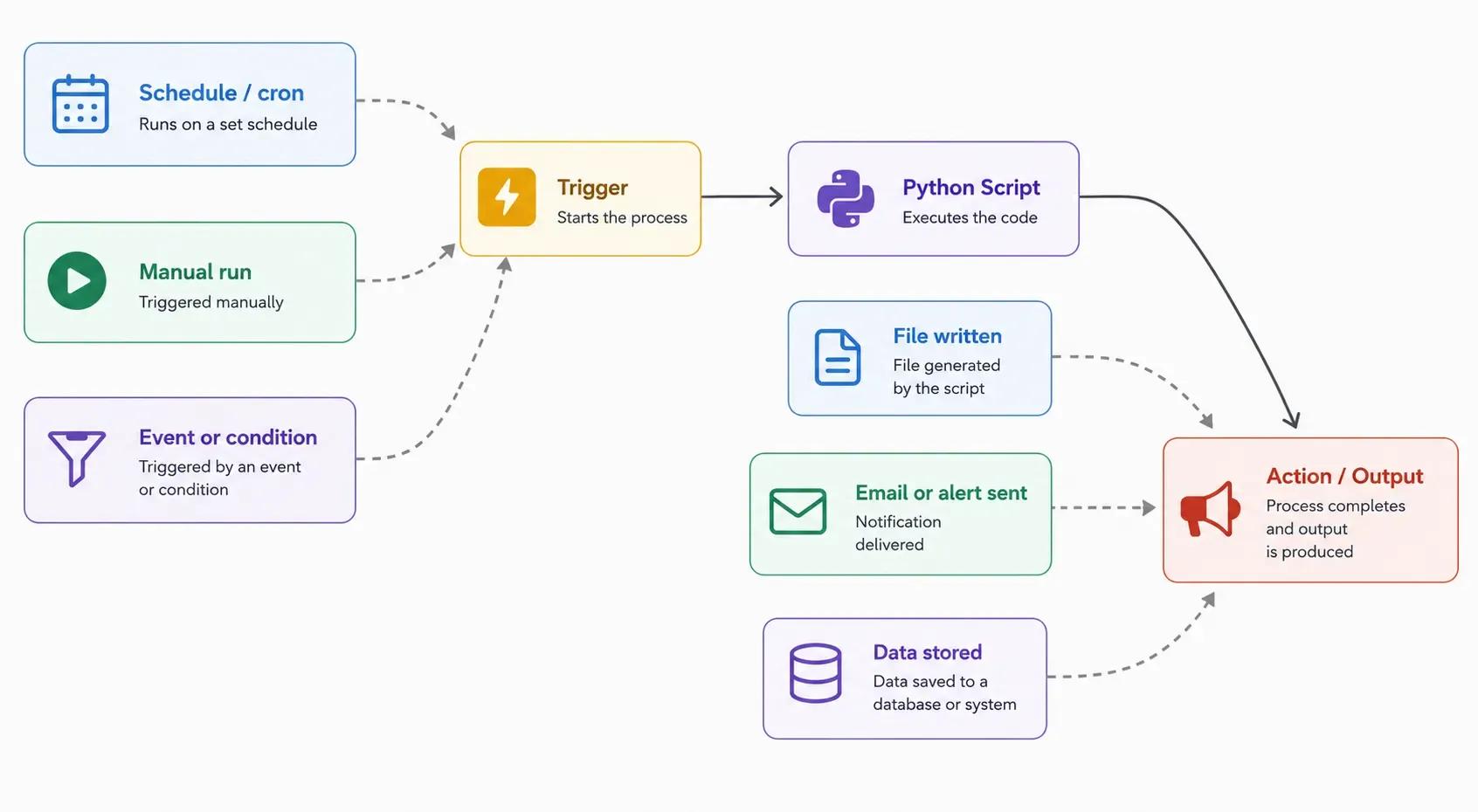
The trigger can be a schedule, a manual run, or a condition being met. The work is whatever logic you write. The output is a file, a notification, or a change to some system. Keep this in mind as you read, because the real power shows up later when you start connecting one script's output to another script's trigger.
Project 1: Automated Email Sender
Sending email programmatically is the most reusable building block in this list. Notifications, scheduled reports, alerts, and reminders all depend on it, and several of the later projects assume you already have it in place.
import smtplib
from email.mime.text import MIMEText
from email.mime.multipart import MIMEMultipart
import os

def send_email(to_email, subject, body):
    sender = os.environ.get('EMAIL_ADDRESS')
    password = os.environ.get('EMAIL_PASSWORD')

    msg = MIMEMultipart()
    msg['From'] = sender
    msg['To'] = to_email
    msg['Subject'] = subject
    msg.attach(MIMEText(body, 'html'))

    with smtplib.SMTP('smtp.gmail.com', 587) as server:
        server.starttls()
        server.login(sender, password)
        server.send_message(msg)
        print(f'Email sent to {to_email}')


send_email(
    '[email protected]',
    'Weekly Report',
    '<h1>Sales Report</h1><p>Revenue this week: $45,000</p>'
)
Two details make this production-friendly rather than a throwaway snippet. First, credentials are read from environment variables rather than written to a file, which keeps secrets out of version control. Second, the body is sent as HTML, so you can format reports with headings and tables rather than plain text.
For Gmail specifically, you will hit a wall if you try your normal password. You need to generate an app password in your Google account settings and use that instead. Treat it like any other secret: never commit it, and never reuse your account password here.
Project 2: Web Scraper with BeautifulSoup
Scraping is how you turn web pages into structured data you can actually work with. Price monitoring, research aggregation, and lead collection all start here. This example pulls quotes from a practice site and writes them to a CSV file, but the structure applies to any page you are allowed to scrape.
import requests
from bs4 import BeautifulSoup
import csv

def scrape_quotes():
    url = 'https://quotes.toscrape.com'
    response = requests.get(url)
    soup = BeautifulSoup(response.text, 'html.parser')

    quotes = []
    for quote in soup.find_all('div', class_='quote'):
        text = quote.find('span', class_='text').get_text()
        author = quote.find('small', class_='author').get_text()
        quotes.append({'text': text, 'author': author})

    # Save to CSV
    with open('quotes.csv', 'w', newline='') as f:
        writer = csv.DictWriter(f, fieldnames=['text', 'author'])
        writer.writeheader()
        writer.writerows(quotes)

    print(f'Scraped {len(quotes)} quotes')

scrape_quotes()
The flow is the same for nearly every scraper you will write: request the page, parse the HTML, locate the elements you care about, and persist what you extracted.
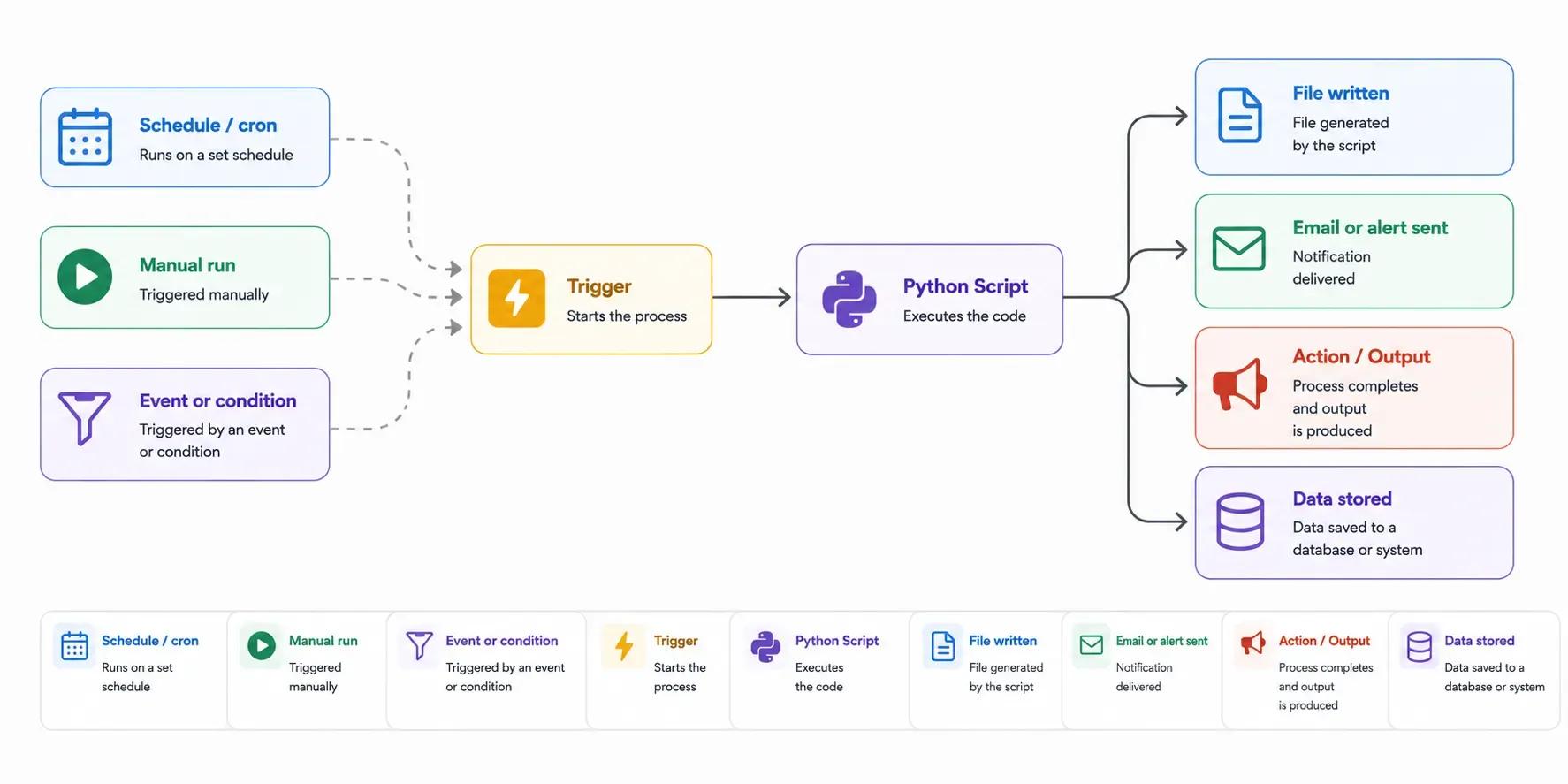
A few practical notes before you point this at a live site. Always check the site's terms of service and robots.txt, since not every page is fair game. Add request delays and a sensible user agent to avoid hammering the server. For larger jobs, CSV stops being a good destination; structured or document data tends to belong in a database, and teams running scrapers at scale often store results in MongoDB and bring in MongoDB developers to design indexes and query patterns that hold up under volume. The same scraping logic also pairs naturally with frontend work when results feed into a dashboard, where React developers typically take over the display layer.
Install with pip install requests beautifulsoup4. The full BeautifulSoup documentation is available at crummy.com.
Project 3: PDF Merger and Splitter
Document handling is one of the least glamorous and most repetitive tasks in any office, making it a strong candidate for automation. This project does both halves of the job: combining several PDFs into one and extracting a page range from a larger file.
from PyPDF2 import PdfMerger, PdfReader, PdfWriter

# Merge multiple PDFs into one
def merge_pdfs(pdf_list, output_name):
    merger = PdfMerger()
    for pdf in pdf_list:
        merger.append(pdf)
    merger.write(output_name)
    merger.close()
    print(f'Merged into {output_name}')

merge_pdfs(['report1.pdf', 'report2.pdf', 'report3.pdf'], 'combined.pdf')


# Split a PDF - extract specific pages
def split_pdf(input_pdf, start_page, end_page, output_name):
    reader = PdfReader(input_pdf)
    writer = PdfWriter()
    for page_num in range(start_page - 1, end_page):
        writer.add_page(reader.pages[page_num])
    with open(output_name, 'wb') as f:
        writer.write(f)
    print(f'Extracted pages {start_page}-{end_page} to {output_name}')

split_pdf('big_report.pdf', 1, 5, 'first_5_pages.pdf')
One detail worth understanding is the page indexing. PDF readers count pages from zero internally, but people count from one, so the split function subtracts one from start_page. That single line is the difference between "extract pages 1 to 5" working as a human would expect and silently dropping the first page. The pattern here scales well: wrap these two functions in a loop and you can batch-process an entire directory of invoices or reports.
Install with pip install PyPDF2.
Project 4: Excel Report Generator
Spreadsheets remain the format that finance and operations teams trust, so generating them programmatically removes a recurring manual step. This script builds a styled sales report, sizes the columns to fit, and embeds a chart, all without opening Excel once.
import openpyxl
from openpyxl.styles import Font, PatternFill, Alignment
from openpyxl.chart import BarChart, Reference
def create_sales_report(data, filename):
    wb = openpyxl.Workbook()
    ws = wb.active
    ws.title = 'Sales Report'

    # Header styling
    header_font = Font(bold=True, color='FFFFFF', size=12)
    header_fill = PatternFill(start_color='2B5797', fill_type='solid')

    # Write headers
    headers = ['Product', 'Units Sold', 'Revenue', 'Profit']
    for col, header in enumerate(headers, 1):
        cell = ws.cell(row=1, column=col, value=header)
        cell.font = header_font
        cell.fill = header_fill
        cell.alignment = Alignment(horizontal='center')

    # Write data
    for row_idx, row_data in enumerate(data, 2):
        for col_idx, value in enumerate(row_data, 1):
            ws.cell(row=row_idx, column=col_idx, value=value)

    # Auto-adjust column widths
    for col in ws.columns:
        max_length = max(len(str(cell.value or '')) for cell in col)
        ws.column_dimensions[col[0].column_letter].width = max_length + 4

    # Add chart
    chart = BarChart()
    chart.title = 'Revenue by Product'
    chart.y_axis.title = 'Revenue ($)'
    data_ref = Reference(ws, min_col=3, min_row=1, max_row=len(data)+1)
    cats = Reference(ws, min_col=1, min_row=2, max_row=len(data)+1)
    chart.add_data(data_ref, titles_from_data=True)
    chart.set_categories(cats)
    ws.add_chart(chart, 'F2')

    wb.save(filename)
    print(f'Report saved to {filename}')

sales_data = [
    ['Laptop', 150, 149850, 45000],
    ['Phone', 320, 223680, 67000],
    ['Tablet', 85, 42415, 12700],
    ['Headphones', 500, 49950, 20000],
]
create_sales_report(sales_data, 'sales_report.xlsx')
The value of this script is not the styling, it is the repeatability. Once the report logic is defined in code, the same formatting, headers, and chart appear every time, with zero risk of someone accidentally breaking a formula. That consistency is exactly what matters when reports go to stakeholders on a fixed schedule.
This is also the point at which automation becomes a backend concern. A report generator that runs on a server, pulls from a live database, and emails itself out is a small data pipeline, and that is the territory where back-end developers add reliability, scheduling, and proper data access. Combine this with Project 1, and you have end-to-end automated reporting.
Install with pip install openpyxl.
Project 5: File Organizer (Sort Downloads Folder)
A Downloads folder is where files go to be forgotten. This script reads every file, matches it to a category based on its extension, and moves it to the appropriate subfolder. It is the kind of small win that immediately demonstrates the value of automation.
import os
import shutil
from pathlib import Path

def organize_downloads():
    downloads = Path.home() / 'Downloads'

    # Define file type categories
    categories = {
        'Images': ['.jpg', '.jpeg', '.png', '.gif', '.webp', '.svg'],
        'Documents': ['.pdf', '.doc', '.docx', '.txt', '.xlsx', '.csv'],
        'Videos': ['.mp4', '.avi', '.mov', '.mkv'],
        'Music': ['.mp3', '.wav', '.flac', '.aac'],
        'Archives': ['.zip', '.rar', '.7z', '.tar', '.gz'],
        'Code': ['.py', '.js', '.html', '.css', '.json'],
    }

    moved = 0
    for file in downloads.iterdir():
        if file.is_file():
            ext = file.suffix.lower()
            folder_name = 'Other'

            for category, extensions in categories.items():
                if ext in extensions:
                    folder_name = category
                    break

            dest_folder = downloads / folder_name
            dest_folder.mkdir(exist_ok=True)
            shutil.move(str(file), str(dest_folder / file.name))
            moved += 1

    print(f'Organized {moved} files')

organize_downloads()
The decision logic is what makes this clean and easy to extend. Each file's extension is checked against the category map, and any that do not match are routed to an "Other" folder rather than skipped.
To add a new category, you add one line to the dictionary. Run it manually when the clutter builds up, or set it to run weekly as a cron job (or a Task Scheduler entry on Windows) so the cleanup happens without you having to think about it.
Project 6: Stock Price Tracker with Notifications
This project introduces the most important concept in the list: a script that watches a condition and acts only when it is met. It polls a price endpoint on a loop and fires an alert when a target threshold is crossed.
import requests
import time

def check_stock_price(symbol, target_price):
    url = f'https://query1.finance.yahoo.com/v8/finance/chart/{symbol}'
    headers = {'User-Agent': 'Mozilla/5.0'}

    try:
        response = requests.get(url, headers=headers)
        data = response.json()
        price = data['chart']['result'][0]['meta']['regularMarketPrice']
        print(f'{symbol}: ${price:.2f}')

        if price <= target_price:
            print(f'ALERT: {symbol} is at ${price:.2f} (target: ${target_price})')
            # Add email notification here using Project 1
            return True
    except Exception as e:
        print(f'Error: {e}')

    return False


# Check every 5 minutes
while True:
    check_stock_price('AAPL', 150.00)
    check_stock_price('GOOGL', 140.00)
    time.sleep(300)  # 5 minutes
Notice the comment inside the alert branch: this is where you call the email function from Project 1. That single connection turns two standalone scripts into a working pipeline. The condition-watcher produces an event, and the notifier acts on it.
The try...except block matters more than it looks. Any network call can fail or return an unexpected shape, and without that guard, a single bad response would crash the entire loop. The same polling pattern underpins many production backends, and when this kind of watcher needs to handle thousands of symbols or concurrent connections, teams frequently move it to an event-driven runtime and bring in Node.js developers for the high-throughput layer.
Project 7: Automated Backup Script
Backups are the task everyone agrees is important and nearly everyone neglects. This script timestamps a copy of a folder, then prunes old backups so storage does not grow without limit.
import shutil
import os
from datetime import datetime

def backup_folder(source, backup_dir):
    timestamp = datetime.now().strftime('%Y%m%d_%H%M%S')
    backup_name = f'backup_{timestamp}'
    backup_path = os.path.join(backup_dir, backup_name)

    shutil.copytree(source, backup_path)
    print(f'Backup created: {backup_path}')

    # Keep only last 5 backups
    backups = sorted(os.listdir(backup_dir))
    while len(backups) > 5:
        oldest = os.path.join(backup_dir, backups.pop(0))
        shutil.rmtree(oldest)
        print(f'Deleted old backup: {oldest}')

backup_folder('/path/to/important/files', '/path/to/backups')
The retention logic is the part worth your attention. The timestamp format sorts chronologically as plain text, so sorting the directory and removing the oldest copies from the front reliably deletes them first. The script keeps the five most recent entries and discards the rest, giving you a rolling history without manual cleanup. Schedule it nightly, and you have a backup routine that maintains itself.
Project 8: Bulk Image Resizer
Anyone who has prepared images for the web knows the tedium of resizing dozens of files by hand. This script processes an entire directory, scales each image to a maximum width while preserving the aspect ratio, and saves an optimized copy.
from PIL import Image
import os

def resize_images(input_dir, output_dir, max_width=800):
    os.makedirs(output_dir, exist_ok=True)

    for filename in os.listdir(input_dir):
        if filename.lower().endswith(('.jpg', '.jpeg', '.png', '.webp')):
            img = Image.open(os.path.join(input_dir, filename))

            # Calculate new height maintaining aspect ratio
            ratio = max_width / img.width
            new_height = int(img.height * ratio)

            if img.width > max_width:
                img = img.resize((max_width, new_height), Image.LANCZOS)

            output_path = os.path.join(output_dir, filename)
            img.save(output_path, quality=85, optimize=True)
            print(f'Resized: {filename}')


resize_images('raw_photos', 'resized_photos', max_width=1200)
Two choices keep the output quality high. The aspect ratio is calculated before resizing, so images never come out stretched, and the LANCZOS filter is used for downscaling because it preserves detail better than faster alternatives. The width check also means that images already smaller than the target are saved without upscaling, thereby avoiding blur.
Image preparation is a recurring need in mobile work, where assets have to be sized for multiple screen densities. A script like this often becomes part of a mobile build pipeline, and mobile app developers regularly automate this kind of asset processing so designers and engineers don't have to do it by hand.
Install with pip install Pillow.
Project 9: CSV to JSON Converter
Data rarely arrives in the format you need. CSV is the common export from spreadsheets and legacy systems, while JSON is what most APIs and web applications consume. This small utility bridges the two.
import csv
import json

def csv_to_json(csv_file, json_file):
    data = []
    with open(csv_file, 'r') as f:
        reader = csv.DictReader(f)
        for row in reader:
            data.append(row)

    with open(json_file, 'w') as f:
        json.dump(data, f, indent=2)

    print(f'Converted {len(data)} rows to {json_file}')

csv_to_json('data.csv', 'data.json')
The work is done by DictReader, which uses the CSV header row as keys, so each row becomes a clean dictionary with no manual column mapping. The indent=2 argument keeps the output human-readable, which is worth the few extra bytes when you are debugging. This converter is a natural first stage in a larger pipeline: convert a CSV export, then load the JSON into an application or database.
Project 10: Website Uptime Monitor
The final project is a practical monitoring tool. It checks a list of URLs, records whether each responds and how long it takes, and reports the results in a loop.
import requests
import time
from datetime import datetime

def check_sites(urls):
    results = []
    for url in urls:
        try:
            start = time.time()
            response = requests.get(url, timeout=10)
            elapsed = round((time.time() - start) * 1000)
            status = 'UP' if response.status_code == 200 else f'ISSUE ({response.status_code})'
            results.append(f'[{status}] {url} - {elapsed}ms')
        except requests.exceptions.RequestException:
            results.append(f'[DOWN] {url}')

    timestamp = datetime.now().strftime('%Y-%m-%d %H:%M:%S')
    print(f'\n--- Check at {timestamp} ---')
    for r in results:
        print(r)

sites = [
    'https://yoursite.com',
    'https://api.yoursite.com/health',
    'https://blog.yoursite.com',
]

# Check every 60 seconds
while True:
    check_sites(sites)
    time.sleep(60)
The status logic distinguishes three states rather than two, which is what makes it useful in practice. A 200 response is "UP", any other status code is flagged as an "ISSUE" with the code attached, and a connection failure caught by the except block is reported as "DOWN". The timeout=10 argument is the safeguard that keeps a single unresponsive server from hanging the entire check. Wire the alert path into Project 1, and you have a monitor that emails you the moment a site goes down.
How the Projects Connect
Read individually, these are ten useful scripts. Read together, they are components you can compose. The condition-watchers (Projects 6 and 10) generate events. The notifier (Project 1) acts on them. The data tools (Projects 2 and 9) feed the reporting tools (Project 4). The maintenance scripts (Projects 5 and 7) run quietly on a schedule.
That composability is the real lesson. A monitor that emails alerts, a scraper that loads results into a database, and a report that builds and sends itself: each is just two or three of these scripts connected at their inputs and outputs. The compounding effect is what makes it worthwhile, since workflow automation saves the average company tens of thousands of dollars a year by removing recurring manual work at scale. As those chains grow into systems that need databases, scheduling, error recovery, and a user interface. The work spans the full stack, the stage at which many businesses engage full-stack developers to turn a collection of scripts into a maintainable product.
Frequently Asked Questions
What is the best way to schedule a Python automation script?
For recurring tasks, use your operating system's scheduler rather than an infinite while loop. On Linux and macOS that is cron; on Windows it is Task Scheduler. The looping examples here (Projects 6 and 10) are fine for a process you intend to keep running, but for periodic jobs like backups and folder cleanup, a scheduled trigger is more reliable because it survives reboots and does not depend on a script staying alive. The schedule library is a lightweight in-Python alternative when you want the timing logic inside the script itself.
How do I keep credentials and API keys secure in automation scripts?
Never hardcode secrets into a script, as Project 1 demonstrates by reading credentials from environment variables. Store them in environment variables or a dedicated secrets manager, keep them out of version control, and use scoped credentials such as Gmail App Passwords instead of your main account password. This single practice is the difference between a hobby script and one you can safely run on a shared server.
Do I need error handling in a simple automation script?
Yes, especially for anything that touches a network or the file system. Projects 6 and 10 wrap their requests in try...except blocks for a reason: an unhandled exception on one iteration will stop a long-running loop entirely. Even a basic catch that logs the error and continues will make the difference between a script that runs for months and one that dies on the first unexpected response.
When should automation move from scripts to a proper application?
The signal is usually a combination of three things: the script needs to run reliably without a person watching it, multiple scripts need to share data, and someone other than you needs to see the results. At that point, you are building a system, not a script, and concerns like databases, scheduling, monitoring, and a user interface start to dominate. That transition is where dedicated engineering support pays off.
Need Python Automation Experts?
The scripts in this guide are a strong starting point, but production automation has different demands: reliability under load, secure credential handling, error recovery, scheduling, and integration with the rest of your stack. That is the gap between a script that helps you and a system your business can depend on.
Softaims closes that gap. Our vetted Python developers build custom automation solutions, data pipelines, and integration scripts for teams of every size, from a single recurring job to infrastructure that runs unattended around the clock. Hire Python developers to take your workflows from scripts to production, or browse our vetted developers to find the right fit for your stack.


 GitHub
 Stackoverflow
John M.

 Verified Expert in Engineering
My name is John M. and I have over 4 years of experience in the tech industry. I specialize in the following technologies: Python, Golang, DevOps Engineering, C#, F#, etc.. I hold a degree in Bachelor of Arts (BA). Some of the notable projects I’ve worked on include: Multi-Cloud Self-Service Infrastructure Platform (AWS & GCP), Retrieval-Augmented Generation (RAG) AI App on AWS, Next.js Customer Portal for Data, Reports & Subscription Management, Captive Portal Data API: Scalable User Management & Analytics Platform. I am based in Bronx County, United States. I've successfully completed 4 projects while developing at Softaims.
I employ a methodical and structured approach to solution development, prioritizing deep domain understanding before execution. I excel at systems analysis, creating precise technical specifications, and ensuring that the final solution perfectly maps to the complex business logic it is meant to serve.
My tenure at Softaims has reinforced the importance of careful planning and risk mitigation. I am skilled at breaking down massive, ambiguous problems into manageable, iterative development tasks, ensuring consistent progress and predictable delivery schedules.
I strive for clarity and simplicity in both my technical outputs and my communication. I believe that the most powerful solutions are often the simplest ones, and I am committed to finding those elegant answers for our clients.

Leave a Comment
Need help building your team? Let's discuss your project requirements.
Get matched with top-tier developers within 24 hours and start your project with no pressure of long-term commitment.