How to Integrate Firebase with Flutter: Authentication, Firestore, and Cloud Functions
Firebase handles your backend so you can ship Flutter apps faster. This guide covers project setup, authentication, Firestore CRUD, and a lot more, with production-tested code from apps serving 15,000+ daily active users.
Technically reviewed by:
Jorge S.|Francisco B.
Table of contents
Key Takeaways
- Firebase provides a complete backend as a service that eliminates the need for building custom REST APIs, managing servers, or configuring authentication from scratch.
- The FlutterFire CLI automates project configuration across iOS, Android, and web platforms, reducing setup time from hours to minutes.
- Cloud Firestore enables real-time data synchronization with offline caching, while Firebase Authentication supports multiple sign-in methods with minimal code.
- Production-ready Firebase Flutter apps require deliberate attention to security rules, data modeling, cost optimization, and pagination strategies.
- If you need experienced Flutter developers to build or scale your Firebase-powered app, Softaims provides pre-vetted engineers who have shipped production apps with this stack.
Firebase and Flutter are a natural fit for mobile app development. Firebase provides a complete backend without writing server code. It handles authentication, a real-time database, file storage, push notifications, analytics, and more. Flutter provides a performant cross-platform frontend from a single Dart codebase. Together, they allow you to build and launch a fully functional application in weeks instead of months.
I have used this stack on 4 production projects, including a social media app and a delivery-tracking platform. The development speed is substantial. You skip the entire process of building a REST API, setting up a server, managing a database, and configuring authentication from scratch. Firebase handles all of it, letting your Flutter developers focus on building the product experience rather than backend infrastructure.
This guide walks you through integrating the most commonly used Firebase services with Flutter, with production-tested code examples you can apply directly to your project. We cover project setup, email and Google authentication, Cloud Firestore CRUD operations, image uploads, push notifications, security rules, cost optimization, and more.
Why use Firebase with Flutter
Building a mobile app usually involves creating a backend server, designing a REST API, managing a database, and implementing user authentication. Each of these components adds weeks of development time and ongoing maintenance overhead. Firebase reduces much of that backend complexity by offering a fully managed, serverless backend that integrates directly with your client-side code.
Flutter is a cross-platform UI framework that, combined with Firebase, gives you a development workflow in which a single codebase can power iOS, Android, and the web, and a single backend configuration can manage data, authentication, and storage for the entire set. This combination is especially useful for startups, MVPs, and teams that need to iterate quickly while remaining scalable. If you are new to building mobile applications, our mobile app development 101 guide covers the foundational concepts before you dive into Firebase-specific implementation.
Here is what Firebase provides as a backend as a service for Flutter apps:
Zero backend code. Firebase handles authentication, database operations, file storage, and push notifications without requiring you to write or maintain server-side code. There is no Express, Django, or Node.js server to deploy.
Real-time data synchronization. Cloud Firestore syncs data in real time to all connected clients. Adding a comment, updating a record, etc., all show up instantly to each connected user without any polling or manual refresh logic.
Built-in auth. Firebase Authentication supports email/password, Google, Apple, Facebook, and phone number sign-in methods. Implementing any of these requires only a few lines of Dart code in your Flutter app.
Generous free tier. The Firebase Spark plan is free and covers most small- to medium-sized applications. You get 50,000 monthly active users for authentication, 50,000 daily Firestore document reads, 1 GiB of Firestore storage, and 10 GiB of monthly network egress at no cost.
Scales automatically. Firebase infrastructure scales from a handful of users to millions without any changes to your application code or architecture. This matters for products that experience sudden growth or seasonal traffic spikes.
We have used this stack across multiple production projects at Softaims, including a social media application with real-time chat and a delivery tracking platform with live location updates. The development speed advantage is quite significant. What would typically take a full-stack development team several months to build and deploy can be done in weeks with Firebase and Flutter.
Setting Up a Firebase Project
The FlutterFire CLI has simplified the process of integrating Firebase with Flutter. This command-line tool makes it easier to create and set up your Firebase project, so you don’t need to download platform-specific configuration files or modify native build configs.
Here are some simple steps to follow:
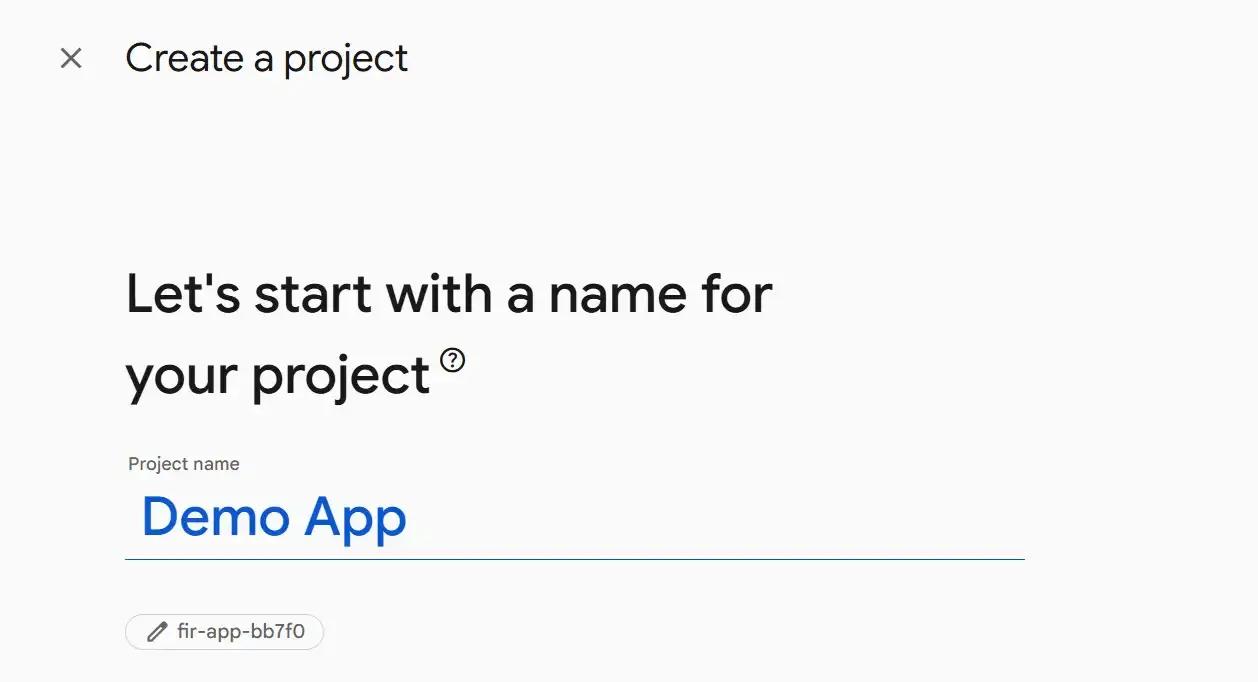
Step 1: Go to the Firebase Console, create a new project, and give it a name. Let’s call this one “Demo App.”
Step 2: Enable Google Analytics for usage tracking (recommended) and click "continue." Now, click on “create project," and it will create a Demo App project for you (see the screenshot below).
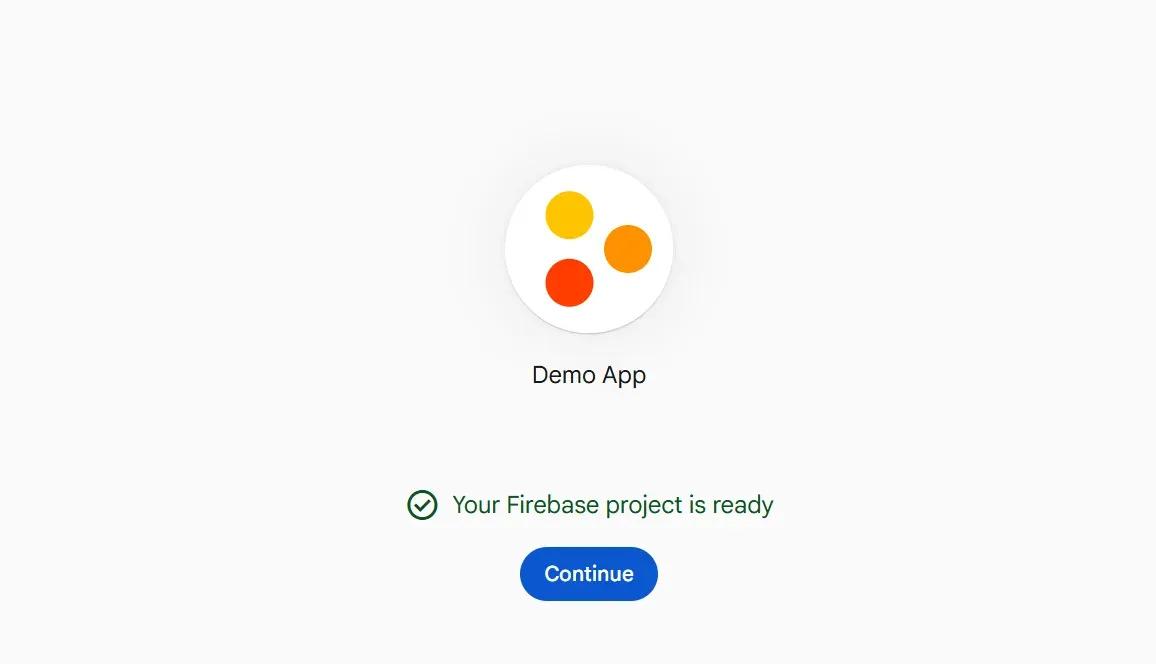
Step 3: Now that your Firebase project is ready, the next step is connecting it to your Flutter application using the FlutterFire CLI.
First, open your terminal or command prompt.
Then install the FlutterFire CLI globally by running:
# Install FlutterFire CLI
dart pub global activate flutterfire_cli
If the command is not recognized, make sure Dart and Flutter are properly installed and added to your system PATH.
After installation, navigate to your Flutter project folder in the terminal:
cd your_flutter_projectFor example:
cd demo_appNow run the FlutterFire setup wizard inside your project:
# Run the setup wizard in your Flutter project
flutterfire configure
This command automatically handles most of the Firebase setup for you. It will:
- Connect your Flutter app to Firebase
- Register Android, iOS, web, or desktop platforms
- Generate a firebase_options.dart file inside your lib/ folder
- Apply the required Firebase configurations automatically
This means you do not need to manually download and place:
- google-services.json for Android
- GoogleService-Info.plist for iOS
The CLI takes care of that process for you.
Step 4: Next, add Firebase Core to your Flutter project by updating your pubspec.yaml file:
# pubspec.yaml
dependencies:
  firebase_core: ^2.24.2
Then initialize Firebase in your app entry point:
// lib/main.dart
import 'package:firebase_core/firebase_core.dart';
import 'firebase_options.dart';
void main() async {
  WidgetsFlutterBinding.ensureInitialized();
  await Firebase.initializeApp(
    options: DefaultFirebaseOptions.currentPlatform,
  );
  runApp(const MyApp());
}
One important detail recommended in the official Firebase documentation:
Whenever you:
- add support for a new platform (such as web or macOS), or
- add a new Firebase service like Authentication, Cloud Firestore, or Cloud Functions
Run the following command again:
flutterfire configureThis keeps your Firebase configuration up to date and automatically applies any required platform-specific settings or plugins.
Add Firebase Authentication (Email/Password and Google Sign-In)
Most applications require user authentication, and Firebase authentication makes it very easy to integrate. It comes with out-of-the-box support for multiple sign-in providers, handles session persistence across app restarts, and provides real-time auth state streams, which make handling UI states much easier.
Before writing any code, open the Firebase Console and enable the authentication providers you want to use. Go to:
Firebase Console → Authentication → Sign-in method
Then enable:
- Email/Password
- Google Sign-In
This is one of the most commonly missed setup steps. If the providers are not enabled in the Firebase Console, authentication requests will fail even if your Flutter code is correct.
Install Authentication Packages
Add the required Firebase Authentication packages to your pubspec.yaml file:
# pubspec.yaml
dependencies:
  firebase_auth: ^4.16.0
  google_sign_in: ^6.2.1  # For Google Sign-In
Then install the packages:
flutter pub getEmail/Password Authentication
A common production pattern is creating a dedicated authentication service class. This keeps Firebase logic separate from UI code and makes it easier to integrate with state management solutions like Provider, Riverpod, or Bloc.
Create a new file:
lib/services/auth_service.dartThen add the following code:
import 'package:firebase_auth/firebase_auth.dart';
class AuthService {
  final FirebaseAuth _auth = FirebaseAuth.instance;
  // Get current user
  User? get currentUser => _auth.currentUser;
  // Listen to auth state changes
  Stream<User?> get authStateChanges => _auth.authStateChanges();
  // Sign up with email and password
  Future<UserCredential> signUp(String email, String password) async {
    return await _auth.createUserWithEmailAndPassword(
      email: email,
      password: password,
    );
  }
  // Sign in
  Future<UserCredential> signIn(String email, String password) async {
    return await _auth.signInWithEmailAndPassword(
      email: email,
      password: password,
    );
  }
  // Sign out
  Future<void> signOut() async {
    await _auth.signOut();
  }
  // Password reset
  Future<void> resetPassword(String email) async {
    await _auth.sendPasswordResetEmail(email: email);
  }
}
This service handles the core authentication operations:
- User registration
- User login
- Logout
- Password reset
- Listening to authentication state changes
Google Sign-In
Google Sign-In requires an additional package and a slightly different flow. The process involves triggering the native Google authentication dialog, obtaining credentials, and passing them to Firebase for verification.
Add the following method to your AuthService class:
import 'package:google_sign_in/google_sign_in.dart';
Future<UserCredential> signInWithGoogle() async {
  // Trigger the Google authentication flow
  final GoogleSignInAccount? googleUser = await GoogleSignIn().signIn();
  if (googleUser == null) {
    throw Exception('Google sign-in cancelled');
  }
  // Get auth details from the request
  final GoogleSignInAuthentication googleAuth =
      await googleUser.authentication;
  // Create a credential
  final credential = GoogleAuthProvider.credential(
    accessToken: googleAuth.accessToken,
    idToken: googleAuth.idToken,
  );
  // Sign in to Firebase with the Google credential
  return await FirebaseAuth.instance.signInWithCredential(credential);
}
Managing Auth State in the UI
One of the best features of Firebase Authentication is the authStateChanges() stream. This stream automatically emits updates whenever:
- a user signs in
- signs out
- restores a session after app restart
You can use Flutter’s StreamBuilder widget to switch between screens based on authentication state reactively.
For example:
StreamBuilder<User?>(
  stream: FirebaseAuth.instance.authStateChanges(),
  builder: (context, snapshot) {
    if (snapshot.connectionState == ConnectionState.waiting) {
      return const CircularProgressIndicator();
    }
    if (snapshot.hasData) {
      return const HomeScreen(); // User is logged in
    }
    return const LoginScreen(); // User is not logged in
  },
)
This approach eliminates the need for manual navigation logic after login or logout. Firebase automatically persists authentication sessions on iOS, Android, and the web. This means users stay logged in even after closing and reopening the app, without needing to write additional persistence code. On web platforms, authentication state is stored in IndexedDB by default, with options to configure local storage or session-only persistence.
Add Cloud Firestore for Real-Time Data
Cloud Firestore is Firebase’s NoSQL document database designed for real-time synchronization across connected devices. Unlike traditional REST APIs, where clients repeatedly request updates from a server, Firestore automatically pushes new data changes to every connected client in real time. This makes Firestore especially useful for applications that require live updates, such as chat platforms, collaborative tools, dashboards, and social feeds.
Another major advantage is offline support. Firestore automatically caches data locally on mobile devices, which allows users to keep using application even without an internet connection.
Install Cloud Firestore
Add the Firestore package to your pubspec.yaml file:
# pubspec.yaml
dependencies:
  cloud_firestore: ^4.14.0
Then install the package:
flutter pub getCreate a Firestore Service Class
A common architectural pattern is to keep Firestore logic in a dedicated service class rather than directly in widgets.
Create a new file:
lib/services/post_service.dartThen add the following code:
import 'package:cloud_firestore/cloud_firestore.dart';
class PostService {
 final FirebaseFirestore _db =
     FirebaseFirestore.instance;
 // CREATE - Add new post
 Future<DocumentReference> createPost(
   String title,
   String content,
   String userId,
 ) {
   return _db.collection('posts').add({
     'title': title,
     'content': content,
     'userId': userId,
     'likes': 0,
     'createdAt': FieldValue.serverTimestamp(),
   });
 }
 // READ - Real-time posts stream
 Stream<QuerySnapshot> getPosts() {
   return _db
       .collection('posts')
       .orderBy('createdAt', descending: true)
       .snapshots();
 }
 // READ - Single post
 Future<DocumentSnapshot> getPost(
   String postId,
 ) {
   return _db
       .collection('posts')
       .doc(postId)
       .get();
 }
 // UPDATE - Edit post
 Future<void> updatePost(
   String postId,
   String title,
   String content,
 ) {
   return _db
       .collection('posts')
       .doc(postId)
       .update({
     'title': title,
     'content': content,
     'updatedAt':
         FieldValue.serverTimestamp(),
   });
 }
 // DELETE - Remove post
 Future<void> deletePost(String postId) {
   return _db
       .collection('posts')
       .doc(postId)
       .delete();
 }
 // Like post
 Future<void> likePost(String postId) {
   return _db
       .collection('posts')
       .doc(postId)
       .update({
     'likes': FieldValue.increment(1),
   });
 }
}
Understanding Firestore CRUD Operations
This service demonstrates the four core database operations:
- Create → Add new documents
- Read → Fetch documents or listen to live streams
- Update → Modify existing documents
- Delete → Remove documents
Two important Firestore features used above are:
FieldValue.serverTimestamp()
This generates timestamps directly on Firebase servers instead of the client device.
Benefits:
- Consistent timestamps across all users
- Prevents incorrect local device times
- Useful for sorting and analytics
FieldValue.increment()
This performs atomic updates. For example, if multiple users like a post simultaneously, Firestore safely increments the counter without race conditions or overwriting values.
Display Real-Time Data with StreamBuilder
Firestore becomes especially powerful when combined with Flutter’s StreamBuilder. Because Firestore streams emit updates instantly, the UI automatically rebuilds whenever database data changes. This includes updates from the current user, other users, backend services, and Cloud Functions.
Example:
StreamBuilder<QuerySnapshot>(
  stream: PostService().getPosts(),
  builder: (context, snapshot) {
    if (snapshot.hasError) {
      return Text('Error: ${snapshot.error}');
    }
    if (!snapshot.hasData) {
      return const CircularProgressIndicator();
    }
     final posts = snapshot.data!.docs;
    return ListView.builder(
      itemCount: posts.length,
      itemBuilder: (context, index) {
        final post = posts[index].data() as Map<String, dynamic>;
        return ListTile(
          title: Text(post['title']),
          subtitle: Text(post['content']),
          trailing: Text('${post['likes']} likes'),
        );
      },
    );
  },
)
With this reactive approach, you no longer need to manually refresh the UI after database changes. Firestore automatically pushes updates to the app in real time.
Offline Support and Synchronization
Firestore includes built-in offline caching on Android and iOS. When a device loses internet connectivity, the app continues to function with locally cached data. For example, cached data remains available, reads continue working, and writes are stored locally in a queue.
Once the connection is restored, Firestore will automatically synchronize any pending changes with the server. This offline-first behavior requires no additional configuration and is one of the reasons Firebase is popular for mobile apps.
Structure Firestore Data Properly for Flutter Apps
Designing data in Firestore is very different from designing a traditional SQL database. Firestore is a document-based NoSQL database, which means there are no joins, no relational tables, no foreign keys, and no complex SQL relationships. Because of this, the way you structure your data directly affects your app performance, query complexity, and operational cost.
One of the most important Firestore principles is to design your database around how the app reads data, not how it writes data. This is important because Firestore charges per document read, so structuring data to minimize reads per screen load is key to both performance and cost management.
Denormalization is Normal in Firestore
In SQL databases, developers usually normalize data to avoid duplication. In Firestore, the opposite approach is common. Firestore applications often use denormalized data, meaning frequently accessed information is duplicated across documents to reduce expensive queries. For example, instead of fetching author information separately for every post:
posts/post_1
  title: "Flutter Firebase Guide"
  authorId: "user_1"
And then querying:
users/user_1
You would typically store the author name directly inside the post document:
posts/post_1
 title: "Flutter Firebase Guide"
 authorId: "user_1"
 authorName: "John Doe"
This avoids extra database reads and improves screen loading performance.
The trade-off is that if the user changes their display name, you may need to update multiple documents that contain the old value. In production apps, developers often automate these updates using Firebase Cloud Functions.
Recommended Firestore Collection Structure
A clean Firestore structure usually follows these principles:
Keep Top-Level Collections Simple
Use separate collections for major entities:
users
posts
comments
orders
notifications
This keeps your database predictable and easy to scale.
Use Subcollections for Parent-Child Relationships
Subcollections work well for data strongly tied to a parent document.
Example:
users/{userId}/notifications
posts/{postId}/comments
This structure keeps related data grouped together.
Avoid Deep Nesting
Try not to nest collections too deeply.
Good:
users/{userId}/notificationsAvoid:
users/{userId}/posts/{postId}/comments/{commentId}/repliesDeep nesting increases query complexity and usually provides little benefit.
Store Computed Values Directly
Instead of calculating counts every time a screen loads, store aggregated values directly in documents.
For example:
posts/post_1
 likesCount: 120
 commentsCount: 48
Then update these values using atomic operations like:
FieldValue.increment(1)This reduces reads and improves performance.
Firebase Storage: Upload Images and Files
Firebase Storage provides a secure, scalable solution for storing user-generated content such as profile images, document attachments, and media files. It integrates directly with Firebase Authentication for access control and supports upload/download progress tracking.
Install Firebase Storage Packages
Add the required packages to your pubspec.yaml:
# pubspec.yaml
dependencies:
  firebase_storage: ^11.6.0
  image_picker: ^1.0.7
Then install them:
flutter pub get
Upload Images to Firebase Storage
Create a helper function for image uploads:
import 'package:firebase_storage/firebase_storage.dart';
import 'package:image_picker/image_picker.dart';
import 'dart:io';
Future<String> uploadImage() async {
  // Pick image from gallery
  final picker = ImagePicker();
  final pickedFile = await picker.pickImage(
    source: ImageSource.gallery,
    maxWidth: 1024,
    imageQuality: 80,
  );
  if (pickedFile == null) throw Exception('No image selected');
  final file = File(pickedFile.path);
  final fileName = 'uploads/${DateTime.now().millisecondsSinceEpoch}.jpg';
  // Upload to Firebase Storage
  final ref = FirebaseStorage.instance.ref().child(fileName);
  await ref.putFile(file);
  // Get download URL
  final downloadUrl = await ref.getDownloadURL();
  return downloadUrl;
}
Save Image URLs in Firestore
After uploading an image, store the returned download URL inside a Firestore document.
Example:
posts/post_1
 title: "My First Post"
 imageUrl: "https://..."
This approach keeps your database lightweight while offloading binary storage to Firebase Storage, which is optimized for serving large files.
Optimize Images Before Uploading
Large image uploads increase storage costs, bandwidth usage, upload time, and mobile data consumption. For production applications, you can use the imageQuality parameter to compress images before uploading. A value between 70 and 80 usually provides a nice balance between visual quality and file size.
Smaller files reduce storage costs, decrease upload times, and improve the experience for users on slower mobile networks. Use the CachedNetworkImage package when displaying uploaded images in your Flutter UI for better performance and offline support.
Push Notifications with Firebase Cloud Messaging (FCM)
Firebase Cloud Messaging (FCM) allows you to send push notifications to users on Android, iOS, and Web. FCM supports two message types:
Notification Messages: Handled automatically by the operating system. Best for alerts, reminders, promotions, and announcements.
Data Messages: Handled directly inside your app code. Best for custom in-app logic, chat updates, background sync, and silent notifications.
Install Firebase Messaging
Add the package to your pubspec.yaml:
# pubspec.yaml
dependencies:
  firebase_messaging: ^14.7.9
Create a Notification Service
Create a notification service class:
import 'package:firebase_messaging/firebase_messaging.dart';
class NotificationService {
 final FirebaseMessaging _messaging = FirebaseMessaging.instance;
 Future<void> initialize() async {
   // Request permission (iOS)
   await _messaging.requestPermission(
     alert: true,
     badge: true,
     sound: true,
   );
   // Get device token (send this to your backend)
   final token = await _messaging.getToken();
   print('FCM Token: $token');
   // Listen for foreground messages
   FirebaseMessaging.onMessage.listen((RemoteMessage message) {
     print('Got a message: ${message.notification?.title}');
     // Show a local notification or snackbar
   });
   // Handle notification taps (background)
   FirebaseMessaging.onMessageOpenedApp.listen((RemoteMessage message) {
     // Navigate to relevant screen
   });
 }
}
Store FCM Tokens in Firestore
Store each device token inside your Firestore users collection.
Example:
users/user_1
 fcmToken: "abc123..."
This allows your backend or Cloud Functions to send notifications to specific users, user groups, and topic subscribers.
Platform-Specific Notification Permissions
iOS: Notification permission must be requested explicitly before sending notifications.
Android: Most Android versions grant permission automatically.
However, Android 13+ requires runtime notification permissions similar to iOS.
Refer to the official FCM Flutter documentation for handling background messages, topic subscriptions, and notification channels.
Firebase Cost Optimization Best Practices (Flutter + Firebase)
Firebase uses a pay-as-you-go model, which means your costs increase based on Firestore reads and writes, storage usage, network bandwidth, and Cloud Functions execution. For small apps, the free Spark plan is usually enough. But as your app grows, poor data design can quickly become expensive.
Below are the same optimization strategies we use in production Flutter apps at Softaims:
1. Optimize Firestore for Fewer Reads (Most Important)
Firestore charges per document read, so your biggest cost driver is how many reads your UI triggers.
Bad approach: Fetching user data separately for every post and making multiple queries per screen.
Good approach: Denormalize data (store needed fields inside the document).
Example:
Instead of:
posts
postId
  userId: "u1"
And then fetching:
users/u1 → displayName, avatarStore it directly:
posts
postId
  userName: "Ali"
  userAvatar: "url"
Result: 1 read instead of 2+ per item
2. Always Use Pagination (Never Load Everything)
Never load full collections in production apps. Use limit() + cursor pagination:
FirebaseFirestore.instance
.collection('posts')
.orderBy('createdAt')
.limit(10);
Then load more using:
startAfterDocument(lastDoc)Why this matters: reduces Firestore reads, improves app speed, avoids large data transfers, and improves mobile performance.
Ideal page size: 10-20 items
3. Compress Images Before Uploading
Storage costs and upload speed depend heavily on file size. Use:
imageQuality: 70–80Why this matters: reduces image size by 50-70%, allows for faster uploads over mobile data, lowers Firebase Storage costs, and improves UX in low-network regions.
4. Use Offline Caching Properly
Firestore provides built-in offline support on mobile platforms. Cached reads do not count toward your Firestore read quota, which can significantly reduce costs for applications where users frequently revisit the same data. Structure your queries to take advantage of this caching behavior.
5. Secure Your Database (Prevents Cost Explosions)
Bad security rules can allow bots, crawlers, and unauthorized users to read your entire database. A single misconfigured rule that allows unrestricted access can lead to unexpected costs instantly.
Always use deny-by-default rules (only allow what is necessary):
rules_version = '2';
service cloud.firestore {
match /databases/{database}/documents {
  match /users/{userId} {
    allow read, write: if request.auth != null
      && request.auth.uid == userId;
  }
  match /posts/{postId} {
    allow read: if true;
    allow create: if request.auth != null;
    allow update, delete: if request.auth != null
      && resource.data.userId == request.auth.uid;
  }
}
}
6. Monitor Usage Regularly
Use Firebase Console + Google Cloud Billing. Track Firestore reads/writes, storage usage, and function invocations. Also, set budget alerts in Google Cloud so you get notified before overspending. Review the Usage and Billing section regularly to find which services consume the most resources and adjust accordingly.
Firebase Cost Estimates for Flutter Apps in 2026
The table below shows estimated monthly costs for Flutter apps at different scales, based on typical usage patterns we have observed across production mobile applications at Softaims. These estimates assume Firestore as the primary database, email/social authentication, moderate cloud storage usage, and basic cloud functions.
| App Scale | Monthly Active Users | Firestore Reads/Day | Storage | Cloud Functions | Estimated Monthly Cost |
| MVP/Prototype | Under 1,000 | Under 10,000 | Under 1 GB | Minimal | $0 (within Spark free tier) |
| Early-stage app | 1,000-5,000 | 20,000-80,000 | 1-5 GB | Light usage | $0-$10 |
| Growing app | 5,000-20,000 | 80,000-300,000 | 5-20 GB | Moderate usage | $10-$80 |
| Established app | 20,000-50,000 | 300,000-1,000,000 | 20-100 GB | Regular usage | $80-$300 |
| High-traffic app | 50,000-200,000 | 1,000,000+ | 100+ GB | Heavy usage | $300-$1,000+ |
These are estimates based on optimized Firestore queries with proper pagination and caching. Unoptimized apps with excessive reads, missing indexes, or broad collection listeners can cost 3-5x more at any scale. Always monitor usage in the Firebase Console and set up budget alerts in Google Cloud.
Firebase Security Rules for Production Apps
Security rules are the single most important aspect of a production Firebase deployment, yet they are frequently the most neglected. Firebase Security Rules act as a server-side access control layer that determines who can read and write data in Firestore, Realtime Database, and Cloud Storage.
The critical principle is to use a deny-by-default approach. Start with rules that deny all access, and then explicitly open only the operations that your application requires.
// Firestore security rules example
rules_version = '2';
service cloud.firestore {
 match /databases/{database}/documents {
   // Users can only read/write their own data
   match /users/{userId} {
     allow read, write: if request.auth != null
                         && request.auth.uid == userId;
   }
   // Posts are readable by anyone, writable by author
   match /posts/{postId} {
     allow read: if true;
     allow create: if request.auth != null;
     allow update, delete: if request.auth != null
                           && resource.data.userId == request.auth.uid;
   }
 }
}
Testing Rules Before Deployment
The Firebase Local Emulator Suite allows you to test security rules locally without affecting your production database. This is particularly valuable because security rule mistakes in production can either expose sensitive data or completely lock users out of your application.
Before deploying your rules, always use the emulator to test them. Create test cases that address situations involving both authorized and unauthorized access. Check that unauthenticated requests are appropriately denied, that authenticated users can access their own data, and that they cannot access other users' data.
For teams building applications that handle sensitive data, consider implementing role-based access control using custom claims. This allows you to define roles such as admin, editor, or viewer and enforce permissions at the database layer rather than relying solely on client-side logic.
Need Firebase and Flutter Developers?
Getting Firebase to work well with Flutter is pretty simple on a smaller scale, but going to production requires some experience with security rules, data modeling, cost optimization, and offline support. Often, the difference between a prototype and a production-ready application comes down to how well these concerns are addressed.
At Softaims, our Flutter developers have built and launched Firebase-powered applications with thousands of active users. Every code example in this guide comes from patterns we use in real projects. Once your Firebase Flutter app is production-ready, our App Store and Play Store publishing guide walks you through the submission process for both platforms.
If your team needs experienced engineers to build, scale, or optimize a Firebase Flutter application, we can help:
- Hire Flutter Developers - Pre-vetted Flutter engineers with Firebase experience
- Hire Mobile App Developers - Cross-platform mobile development teams
- Hire React Developers - For web frontends that complement your Flutter mobile app
- Hire Node.js Developers - For custom backend services and Cloud Functions
- Hire Full-Stack Developers - For end-to-end product development
- Browse Developer Rates - Transparent pricing for remote developer hiring
Contact Softaims to discuss your project requirements and get matched with qualified developers within 48 hours.
Frequently Asked Questions
Is Firebase a database or cloud?
Firebase is a cloud platform, not a single database. It includes Cloud Firestore (NoSQL database), Realtime Database, Authentication, Cloud Storage, Cloud Functions, FCM, Analytics, and Crashlytics. Firestore and Realtime Database are the database components within the broader platform. Together, these services form a complete backend infrastructure that eliminates the need for custom server-side code.
Will AI replace Flutter developers?
No. AI tools like GitHub Copilot and Claude Code accelerate code generation and debugging, but production Flutter applications still require human judgment for architecture, state management, security, and UX design. AI cannot make the contextual decisions that determine whether an app scales reliably or meets specific business requirements. The most productive approach combines experienced mobile app developers with AI-assisted workflows.
Why is Firebase so popular?
Firebase eliminates backend complexity, letting developers implement auth, databases, storage, and notifications without server code. The free Spark plan covers most small production apps. It integrates seamlessly with Flutter, React Native, iOS, Android, and web through maintained SDKs. Firestore provides real-time sync that would take significant effort to build from scratch. It scales automatically from 100 to 100,000+ users without infrastructure changes. Google continues investing in the platform, announcing Firebase SQL Connect and Firestore Enterprise at Cloud Next 2026.
Is Google discontinuing Firebase?
No. Core Firebase services (Firestore, Auth, Storage, Functions, FCM, Analytics, Crashlytics) are fully operational and actively updated. Google announced major upgrades at Cloud Next 2026, including Firebase SQL Connect and Firestore full-text search. What is being sunset is Firebase Studio, a cloud-based IDE, not a backend service. Firebase Studio shuts down in March 2027. Your databases, authentication, storage, and deployed Flutter applications remain unaffected.
Looking to build with this stack?
Hire Mobile App Developers →

 Stackoverflow
Thomas D.

 Verified Expert in Engineering
My name is Thomas D. and I have over 9 years of experience in the tech industry. I specialize in the following technologies: Ruby, HTML5, CSS 3, JavaScript, C#, etc.. I hold a degree in . Some of the notable projects I’ve worked on include: Hercule: AI Powered Investment Research Platform, JotJab: Form customization for anyone -- simple and powerful., Fetch Hive: An all in-one Generative AI platform, Substronaut Subscriptions, eCommerce Shop, etc.. I am based in Bristol, United Kingdom. I've successfully completed 15 projects while developing at Softaims.
I approach every technical challenge with a mindset geared toward engineering excellence and robust solution architecture. I thrive on translating complex business requirements into elegant, efficient, and maintainable outputs. My expertise lies in diagnosing and optimizing system performance, ensuring that the deliverables are fast, reliable, and future-proof.
The core of my work involves adopting best practices and a disciplined methodology, focusing on meticulous planning and thorough verification. I believe that sustainable solution development requires discipline and a deep commitment to quality from inception to deployment. At Softaims, I leverage these skills daily to build resilient systems that stand the test of time.
I am dedicated to making a tangible difference in client success. I prioritize clear communication and transparency throughout the development lifecycle to ensure every deliverable exceeds expectations.

Leave a Comment
Need help building your team? Let's discuss your project requirements.
Get matched with top-tier developers within 24 hours and start your project with no pressure of long-term commitment.