How to Publish Your First App to App Store and Google Play: Step-by-Step Guide
In this guide, you will learn how to publish your app on the Apple App Store and Google Play Store in 2026. It covers account setup, store listings, review processes, common rejection reasons, ASO, and post-launch optimization.
Table of contents
Key Takeaways
- Publishing to the App Store and Google Play in 2026 is a structured process with clear requirements. The platforms have become stricter, but the rules are well-documented, and most rejections are preventable with preparation.
- Start with the pre-launch checklist: device testing, crash-free performance, accurate privacy declarations, and polished visual assets. Follow the platform-specific workflows step by step. Use TestFlight and Google Play's release tracks to catch issues before they reach production. Study the common reasons for rejection and address them before submission, not after.
- After launch, invest in ASO, crash monitoring, and a consistent update cadence. The stores reward apps that demonstrate ongoing quality and active user engagement.
- If your team needs additional mobile development expertise to handle the technical complexity of app submission, review processes, or ongoing optimization, Softaims can match you with experienced mobile app developers within 48 hours, with a risk-free trial period to ensure the right fit.
You have built your app. It runs on your device. The features work. Now comes the part that derails more launches than most developers expect: actually getting it approved, listed, and discoverable on the App Store and Google Play.
I remember my first app submission. I spent weeks building the app and then realized I didn't know how to submit it. The submission process is not technically difficult. But it has many steps, and missing one can delay your launch by days or weeks. Both Apple and Google tightened their requirements a lot in 2025 and 2026, introducing new SDK mandates, stricter identity verification, and updated privacy review criteria. According to Apple's Transparency Report, the App Review team evaluated approximately 7.77 million submissions and rejected nearly 1 in 4 for failing to meet quality, safety, or design standards.
This article covers the complete publishing workflow for both platforms. Whether you are building natively in Swift and Kotlin or using cross-platform frameworks like React Native or Flutter, the store submission process follows the same path. If you need experienced engineers to handle this process, you can hire mobile application developers who have shipped dozens of apps through both review pipelines.
Bookmark this page. You will come back to it every time you submit an update.
Let’s get started.
Pre-Launch Checklist: Is Your App Ready to Ship
This guide assumes you already have a working app. If you are still deciding between iOS, Android, or cross-platform, start with our Mobile App Development 101 guide. If you are building with React Native and need a hands-on starting point, our React Native tutorial for building your first mobile app walks you through the complete setup.
Once your app is built and running, but before you open App Store Connect or the Google Play Console, run through this checklist. Every item here has been a reason for rejection at some point.
Performance, Stability, and Device Testing
Test on at least three different physical devices with different screen sizes and OS versions. Simulators and emulators don't always catch performance problems, bugs in touch responsiveness, and behavior that reviewers will catch.
Your app should launch within two seconds. Use the profiler in Xcode or Android Studio to measure cold-start time, memory usage, and CPU consumption. Both Apple and Google flag apps that drain battery too quickly or cause devices to overheat.
Zero crashes in testing is the minimum bar. Apple's reviewers test on real devices, and if the app crashes on launch, shows a blank screen, or has buttons that lead nowhere, you will receive an immediate rejection. This is the single most common reason for rejection, and it is almost always preventable with thorough pre-submission testing.
Integrate crash monitoring early. Firebase Crashlytics is free and tracks crashes in real time across both iOS and Android. Set it up before your first submission.
Privacy Policy and Legal Documents
Both stores require a privacy policy URL, even if your app collects no data. You can use a free privacy policy generator for a basic version, but if your app handles user data in any capacity, invest time in a thorough policy that accurately describes your data practices. Your privacy policy should cover what data you collect, how and why you collect it, whether you share it with third parties, your data retention practices, and how users can request deletion of their data. Host it at a publicly accessible URL. PDFs are not accepted on Google Play.
Beyond the privacy policy, prepare these legal documents before submission:
End User License Agreement (EULA): Defines what users can and can't do with your app, the licensing terms, and any third-party services your app requires. Even though neither store requires it, it protects your intellectual property (IP) and clarifies how you can use it.
Terms of Use: Explains how users interact with your app and what to expect. You can combine this with your privacy policy as separate chapters within a single document. Google Play does not require a standalone Terms of Use, but it is a strongly recommended practice for any commercial application.
Data Safety Form (Google Play): Declares what user data your app collects or shares, how it is used, and how it is protected. Even if your app collects no user data at all, you must still complete this form. If your application allows users to create accounts, you must provide both an in-app account deletion option and a web-based account deletion request page that is accessible without reinstalling the app. You cannot submit your app for review until the Data Safety Form is approved.
For iOS, you now need a Privacy Manifest file (PrivacyInfo.xcprivacy) that lists which sensitive APIs your app uses, what data you collect, and the privacy practices of any third-party SDKs you include. If your privacy manifests are missing or wrong, that could be a reason for rejection. Apple considers privacy as a fundamental right, and noncompliance with privacy provisions is the single biggest cause of app and update rejections, according to their own data.
Both stores also require compliance with privacy regulations such as GDPR (for European users) and CCPA (for California users). If your app targets children, additional regulations apply under COPPA. Violating these rules can result in app removal and, in severe cases, developer account suspension. Getting the legal foundation right from the start will help you avoid regulatory compliance issues that could delay your launch or result in post-launch legal action.
Visual Assets: Icons, Screenshots, and Feature Graphics
Your visual assets are the first thing users see and the first thing reviewers check for accuracy.
App Icon:
- iOS: 1024x1024px, no transparency, no rounded corners (the system applies them)
- Android: 512x512px
Screenshots:
- iOS: Required for 6.9-inch display (iPhone 16 Pro Max for 2026 submissions). iPad screenshots are optional but recommended.
- Android: Minimum 2, maximum 8. Phone and tablet screenshots recommended.
- You will need screenshots for multiple screen sizes. We will cover the details below.
Google Play Feature Graphic: 1024x500px. This is displayed prominently in the Play Store and is required.
Screenshots must show the app in actual use. Apple rejects submissions in which screenshots do not match the actual UI, and Google's guidelines prohibit the use of misleading visual assets. If your screenshots show features that do not exist in the app, expect a rejection under metadata accuracy guidelines.
How to Publish an App on the Apple App Store in 2026
The Apple submission process has more steps than Google's, but the workflow is quite similar. Here is the complete path from account creation to approval.
Step 1: Create an Apple Developer Account
Go to Apple Developer and enroll in the Apple Developer Program. It costs $99 per year. You will need an Apple ID and a credit card. Approval usually takes 24-48 hours.
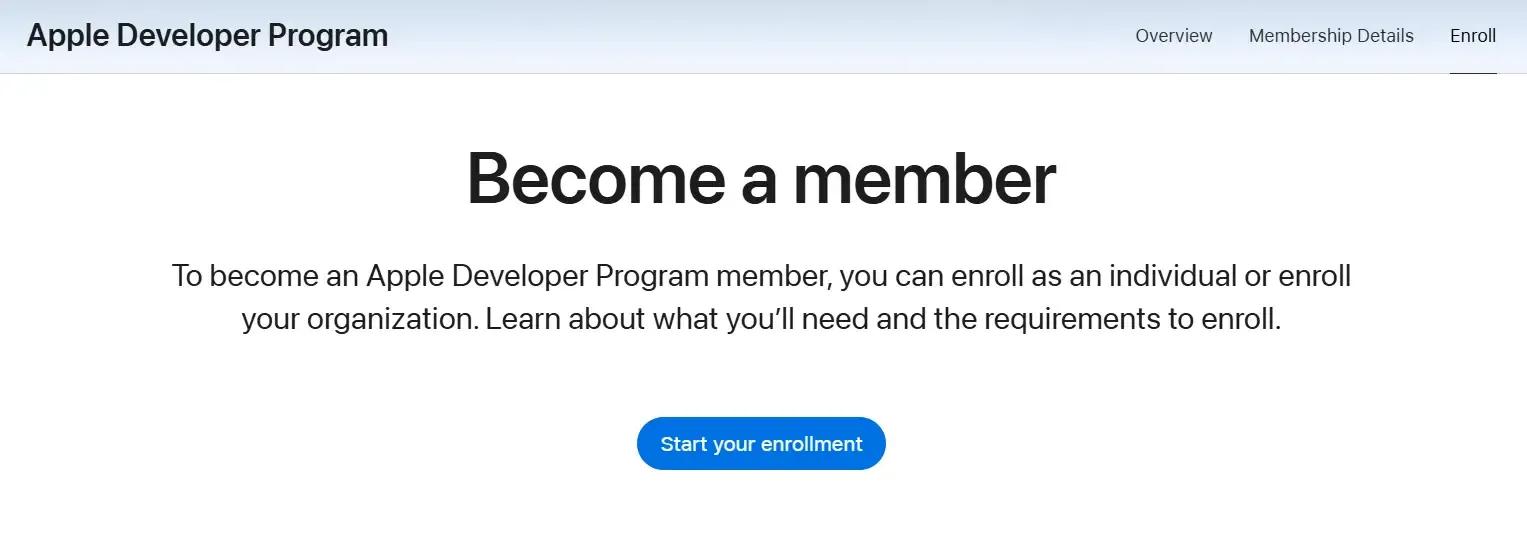
If you are submitting on behalf of a company or organization, you must also provide a D-U-N-S number. Obtaining one is free through Dun & Bradstreet, but the process may take up to two weeks. So start early. Many teams overlook this step and end up wasting weeks of the launch timeline on administrative back-and-forth.
The Developer Program gives you access to App Store Connect, TestFlight, Xcode development tools, and the privilege to publish apps on the App Store. If your application earns less than $1 million annually, you qualify for Apple's Small Business Program, which reduces the commission rate from 30% to 15%. You can enroll directly in App Store Connect under Financial Reporting.
EU and UK Developers: If you are enrolling as an organization based in the EU or UK, Apple may require you to register as a "trader." In Apple's terms, a trader is anyone who offers goods or services for payment through its app, whether those payments are for digital content, subscriptions, or physical goods. If this applies, Apple will ask for your company registration details, VAT number (optional but recommended), and legal contact information. Free apps from individual developers that do not involve paid transactions are exempt from trader registration.
Step 2: Prepare Your App in App Store Connect
App Store Connect is the web portal where you manage everything about your app listing, from initial submission to every future update.
Create a new app record with the following details. Most of these cannot be changed after creation, so fill carefully:
Bundle ID: Must match the one in your Xcode project and be selected from the list of App IDs you have created in the Apple Developer portal. This is your app's permanent identifier across Apple's systems. Choose carefully because it cannot be changed after creation.
SKU: A unique internal identifier for your app in App Store Connect. The SKU is not visible to users and is used by Apple to track your app across sales reports and analytics. Choose a value that is easy for your team to reference, such as a project code or product number.
App Name (30 characters max): Must be unique across the entire App Store. Make it descriptive and include your primary keyword if it fits naturally. The app name is one of the two most important fields for App Store search rankings.
Subtitle (30 characters): Appears directly below the name. Use this for your main value proposition or a secondary keyword. Do not repeat words from the app name here; Apple's search algorithm treats repetition as a waste of character budget.
Keywords (100 characters total, comma-separated): This field is not visible to users but directly impacts search discoverability. Research what terms your target audience actually searches for. Avoid repeating any words already present in your app name or subtitle. Tools like AppTweak, Sensor Tower, and AppFollow provide keyword volume data specific to the App Store search index.
Description (up to 4,000 characters): Lead with the most important features. The App Store search algorithm does not index the long description for search ranking, but it is visible to users and affects conversion rates. Write for humans, not algorithms.
Category: Select a primary and secondary category. Apple's algorithm now shows diverse intent types for broad queries, meaning apps with a clear, focused value proposition tend to rank better than apps trying to serve every use case.
Screenshots: Required for at least the 6.9-inch iPhone display size for 2026 submissions. Ensure screenshots accurately represent the current app UI. Inconsistencies between screenshots and the actual app behavior result in rejection under Guideline 2.3 (Accurate Metadata).
Privacy Manifest and Nutrition Labels: Declare all data your app collects, the APIs it uses, and the privacy practices of every third-party SDK. This is not optional, and inaccuracies here are a leading cause of rejection.
App Privacy Questionnaire: Every app submitted must include privacy details through the App Privacy Questionnaire in App Store Connect, which generates the privacy label displayed on your product page. You must account for all data your app collects or transmits, including data collected by third-party SDKs. This includes identifiers (push notification tokens, device IDs), user content (photos, videos, messages), diagnostics (crash logs, performance metrics), and usage data (interaction events, feature analytics). Match your declarations to your actual Info.plist entries. If your app requests NSCameraUsageDescription or similar permissions, the questionnaire must reflect the potential data collection.
Configure App Capabilities and Permissions
Set up your app's capabilities in Xcode before you build and archive. Select the Signing & Capabilities tab for your project, and activate only the features your app actually uses. If your app accesses the camera, microphone, or photo library, you must list these in Info.plist with a clear, user-friendly explanation:
- NSCameraUsageDescription
- NSMicrophoneUsageDescription
- NSPhotoLibraryUsageDescription
Apple rejects apps that request permissions without a clear justification. Each permission prompt should explain why your app needs access in a language the user can understand.
For apps that run in the background (like ongoing calls, syncing messages, or tracking your location), only turn on the background modes you need. Unjustified background modes that are turned on but not linked to a clear, active feature cause rejections.
Step 3: Build and Upload Your App to App Store
All apps uploaded to App Store Connect after April 2026 must be built with the iOS 26 SDK or later. This is a hard requirement; apps built with older SDKs will be rejected.
The build-and-upload process involves two different security artifacts:
Distribution Certificate: Proves that you built the app binary. You need an "Apple Distribution" certificate for App Store submissions.
Provisioning Profile: Ties your App ID and certificate together, telling Apple which app is allowed to be distributed and by whom.
Using Xcode, archive your app and upload it to App Store Connect:
# In Xcode: # 1. Select 'Any iOS Device' as the build target # 2. Product > Archive # 3. When archive completes, click 'Distribute App' # 4. Select 'App Store Connect' and follow the promptsIf using Expo/EAS:
eas build --platform ios eas submit --platform ios
After upload, Apple runs automated processing that can take anywhere from a few minutes to over an hour. The build then appears in your app record, ready to attach to a submission.
Learn more about EAS Build(Expo) here: https://docs.expo.dev/build/introduction/.
Step 4: TestFlight Beta Testing
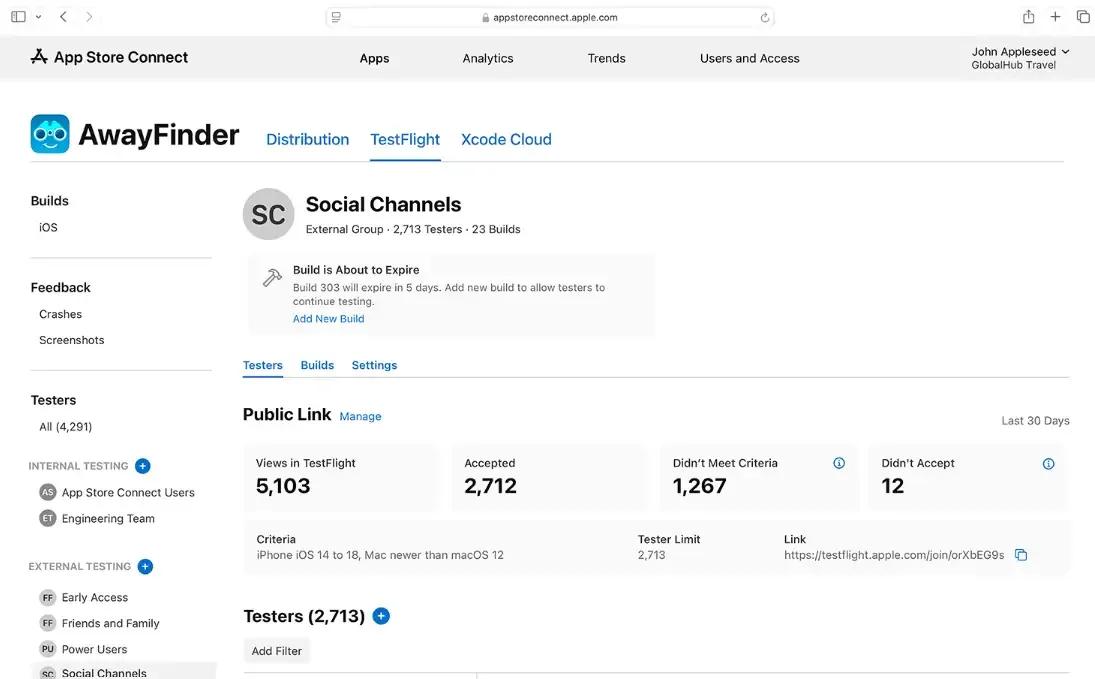
Before submitting for public review, test with real users through TestFlight. Apple's beta testing service lets you invite up to 10,000 external testers via email or a shareable public link. Testers install the TestFlight app and get access to your beta build.
TestFlight testing is more than just a nice-to-have. Real users introduce variation, which testing environments rarely capture. Differences in devices, operating systems, network conditions, and user behavior identify issues that were not obvious during development. Teams that skip this step often face rejections due to device-specific bugs found during the reviewer's first launch.
Upload your build, go to the TestFlight tab in App Store Connect, add testers, and collect feedback before moving to production submission. Run at least one full round of TestFlight testing. It catches issues you may have missed and provides early user feedback to improve your store listing.
Quick checklist:
- Upload your build to App Store Connect.
- Go to the TestFlight tab.
- Add testers via email or by sharing a public link.
- Testers install the TestFlight app and get access to your beta.
I always do at least one round of TestFlight testing before submitting. It catches things you missed and gives you early user feedback.
Step 5: Submit for Review
Once you are confident in the build, go to the App Store tab in App Store Connect, fill in the version information, and click Submit for Review.
Review typically takes 24-48 hours, but it can take longer during busy periods (like right before the holidays).
Common Rejection Reasons
Apple rejects a lot of apps. Here are the most common reasons I have seen:
- Bugs or crashes. If the reviewer finds any crash or major bug, it is an instant rejection.
- Incomplete information. Missing privacy policy, vague description, or placeholder content.
- Guideline 4.0 (Design). Your app must look and feel polished. Apple rejects apps that look unfinished.
- Guideline 2.1 (Performance). Slow apps or apps that use too much battery get flagged.
- Guideline 5.1.1 (Data Collection). If you collect data, your privacy labels must be accurate.
The review process is sequential. A rejection at any stage sends the app back with a written explanation citing the specific guideline. Respond in the Resolution Center inside App Store Connect. Stay professional, ask for specifics if the rejection is vague, and document your fix clearly when resubmitting.
You can read Apple’s full review guidelines for reviews and make sure to follow them closely.
How to Publish an App on the Google Play Store in 2026
Google Play's submission process has fewer gatekeeping steps than Apple's, but the platform has become significantly stricter in recent years. In 2023 alone, Google prevented 2.28 million policy-violating apps from being published and banned hundreds of thousands of developer accounts. The review process is now more thorough, particularly for new developer accounts.
Step 1: Create a Google Play Console Account
Go to the Google Play Store and sign up. It costs a one-time $25 fee, and after that, you can submit unlimited apps without additional listing costs. You will need a Google account.
Google now requires strict identity verification for all developer accounts. Whether you choose a "Personal" or "Organization" account type, you will need to provide identity documentation. Organizations should have their D-U-N-S number and business registration documents ready; this step has caused weeks of delays for teams that did not prepare in advance. Note that finance, health and medical applications, VPN, and government apps require an Organization account. You cannot publish these app types under a Personal account.
Google is also making it mandatory for all app developers to register, even for apps not available on the Play Store. Starting in late 2026, only verified developers will be able to install apps on Android devices in some areas. This will happen all over the world. When you sign up, make sure your legal name, address, and government ID are all correct. This information will be used to check your identity.
If your app includes paid features, in-app purchases, or subscriptions, Google takes a 15% commission on the first $1 million in annual revenue and 30% thereafter. For qualifying subscriptions, the commission drops to 15% after the first year.
Step 2: Create Your App Listing
Before uploading your build, verify these technical requirements:
Application ID (Package Name): This is your app's permanent fingerprint on the Play Store. It uses a reverse-domain format, like com.yourcompany.yourapp. Once you publish with a specific Application ID, you can never change it. Make sure it is exactly what you want before your first submission.
Version Numbers: You keep track of two version numbers. The Version Code is a whole number (1, 2, 3...) used only within the program and must be incremented with each update. The maximum allowed value is 2,100,000,000. The Version Name is the name of the version that people can see, like "1.0" or "2.1.3." Use semantic versioning (major.minor.patch) to make it clear what each update includes.
Target API Level: New apps and app updates must target Android 15 (API level 35) or higher to be submitted to Google Play.
16KB Page Size Support: Starting November 2025, all new apps and updates targeting Android 15+ must support 16KB memory page sizes. This primarily affects apps that use native code (C/C++ via the NDK). Apps written entirely in Java or Kotlin are already compliant.
File Format: Google requires the Android App Bundle (.aab) format for all new apps. APKs are only accepted for apps created before August 2021.
App Size: Google allows up to 200MB for apps published as app bundles. The bundle itself can be larger because Google generates optimized APKs for each device from it.
Preparing Your Store Listing
Your store listing is the single opportunity to convert a browser into a download. Every field matters. In the Google Play Console, create a new app and fill in:
App Title (30 characters): Google reduced the character limit from 50 to 30 in recent policy updates. Make every character count. "Chirp" is acceptable, but "Chirp: Team Chat" is stronger because it adds context and a keyword.
Short Description (80 characters): This is the first thing people see after your title. Start with the biggest benefit of your app or the problem it solves.
Full Description (4,000 characters): Unlike Apple, Google Play indexes the full description for search ranking. Use short paragraphs, weave in keywords naturally, and aim for roughly one keyword match per 250 characters. Keyword stuffing hurts rankings. Google can also suspend apps for repetitive or irrelevant keyword use.
Feature Graphic (1024x500px): Use JPEG or 24-bit PNG (no alpha). Keep key visuals centered and avoid placing important elements near the edges, as the image may be cropped depending on the display format.
Promo Video (Optional): Add a link to a specific YouTube video URL (not a channel or playlist URL). The video appears before your screenshots on the listing. Make sure ads are turned off on the video, or it will not be shown on Google Play.
Tags: Google Play does not allow custom keywords. Instead, you choose up to 5 tags from a predefined list. Selecting the most accurate tags boosts your visibility. Google also supports accessibility tags such as "Screen reader-friendly" and "Motor assistance" to help reach users who rely on assistive technologies.
App Category and Type: Select whether your application is a game or non-game app, then pick the category that best fits. Google's algorithm will show your app to the right people if you put it in the right category.
Pricing: Choose whether your app is free or paid. You can change a paid app to free later, but a free app cannot be changed to paid. If you decide later to monetize, you will need to create a new app listing with a different package name.
Localization: If your app targets users in multiple languages, you can add translations for your store listing directly in Play Console. Gemini can now automatically translate your app strings for free, and it will keep the translations up to date every time you upload a new app bundle. If you add text translations without localized screenshots, users will still see your default-language images. Upload localized screenshots and graphics for each market you target.
Content Rating: Complete the IARC content rating questionnaire before publishing. Ratings are typically issued within minutes, and this is one of the fastest steps in the process. However, misrepresentation in your content rating can result in app removal or account suspension.
Data Safety Section: Detail what data your app collects, whether it is shared with third parties, and your security practices. This is Google's equivalent of Apple's privacy labels, and incomplete data safety information will block your submission.
Step 3: Build and Upload Your Android App Bundle
All new apps must be in the Android App Bundle (AAB) format for Google Play. New submissions are no longer accepted in the old APK format. An AAB is not a file that you can install; it's a way to publish your app that includes all of its compiled code, resources, and assets. Google uses it to build APKs that work best for each device configuration, so downloads are usually 15–20% smaller.
# Using Android Studio:Build > Generate Signed Bundle/APK
Choose Android App Bundle
Sign with your upload key
Using Expo/EAS:
eas build --platform android eas submit --platform android
Using Flutter:
flutter build appbundle
Enroll in Play App Signing when prompted. This is the safer default for key management. When you upload your AAB, Google re-signs it with a Google-managed app signing key and uses that key on every APK delivered to users. You retain your upload key for signing the bundles you submit. The critical advantage: if you lose your upload key, Google can reset it. If you manage your own app signing key and lose it, you can no longer update your app and will need to publish a brand-new listing.
Keystore Management: Your keystore file contains the private key used to sign your app. Keep it secure and backed up. Anyone with your keystore and passwords could upload a malicious update to your app. Never share it, never delete it, and store backups in a secure location. Even with Play App Signing, you need your keystore to upload new versions.
Step 4: Use Release Tracks for Staged Rollouts
Google Play's release tracks are one of the platform's strongest features. They allow you to test gradually with larger audiences before going to full production.
Internal Testing: You can test your app with up to 100 testers. No review process required. Deploy and test within minutes. This is ideal for quick QA cycles and catching issues early.
Closed Testing: Invite specific testers by email or Google Groups. Requires a brief review, but much faster than production.
Open Testing: Anyone can join the beta from your Play Store listing. This gives you broader feedback and exposes your app to a wider range of devices and usage patterns.
Production: Full public release. For your first production release, consider a staged rollout starting at 1-5% of users. This limits the blast radius of any undiscovered bugs and gives you time to monitor crash rates and user feedback before scaling to 100%. Google's "bad behavior thresholds" for Android Vitals are a 1.09% user-perceived crash rate and a 0.47% ANR (Application Not Responding) rate. Cross either threshold, and Google may demote your app in search results and recommendations. A staged rollout is the last safety net before a wide issue hits your rating. If a release is already live and you find a critical bug, you can halt the rollout directly from Play Console to stop further distribution and fix the bug.
After November 2023, new developer accounts must pass certain tests before they can put their app on Google Play. You cannot skip directly to production. Start with internal testing, promote to closed beta, and then move to production. This staged approach is both a policy requirement and a best practice.
I always start with internal testing, then move to closed beta with a small group, and then go to production. This staged approach catches bugs before they reach your full audience.
Step 5: Submit for Review
For reputable accounts, Google's review process is usually faster than Apple's. Changes to apps that are already out there often go live within hours. However, it may take longer to review new developer accounts at first. The first app submission usually takes 3 to 7 days.
Respond quickly if Google requests additional information via email or Play Console notification. Delayed responses pause your review and extend the approval timeline.
Before submitting, verify that your app's functionality, store listing, and privacy declarations all align. Providing a test account for apps with a login and being transparent about your app's features help expedite the review.
Post-Launch: Monitoring and Updates
Launching is not the end. Here is what to do after your app is live:
Crash Monitoring and Analytics
Set up Firebase Crashlytics to track crashes in real time. It provides real-time crash reports for both iOS and Android and is free. When a crash occurs in production, you want to know immediately, before users start leaving one-star reviews.
For user behavior analytics, tools like Firebase Analytics, Mixpanel, or Amplitude help you understand how people actually use your app. Track key metrics: session duration, feature adoption rates, onboarding completion, and drop-off points. These insights drive your update roadmap and help you prioritize what to build next.
It is just as important to monitor server-side performance if your app has a backend infrastructure that uses Node.js or databases like MongoDB. No matter how well the client-side code is optimized, slow API responses degrade the user experience.
Responding to User Reviews
User reviews are a way for people to give feedback and a sign of how good a product is to the public. Respond to reviews quickly, especially bad ones. Recognize the problem, tell people what you're doing to fix it, and then do what you said you would do.
On Google Play, your responses are visible to anyone viewing the listing. On iOS, developer responses also appear publicly. A pattern of thoughtful, professional responses builds credibility and can influence potential users who read reviews before downloading.
Don't argue with reviewers or ignore what they say. Even if the criticism is unfair, a professional response makes your product and your team look good.
Update Frequency and Its Impact on Rankings
Both stores favor apps that receive frequent updates. Frequent updates show that work is still underway and that quality is improving. Try to make at least one important update every month.
Every time you update, you can also refresh your store listing. Update your screenshots to show new features, revise your description to focus on recent improvements, and adjust your keywords based on their performance. You can't just set up ASO once; it needs to be done repeatedly.
Teams that maintain a regular schedule of updates see many benefits, such as better search rankings, more users who stick around, fewer bad reviews, and better treatment by store algorithms.
If you need to scale your development team to maintain this pace, browse vetted developers by specialization, including React, Node.js, and full-stack. You can also explore technology roadmaps to plan your team's skill requirements for the coming year.
App Store Optimization (ASO) Basics
The first step is to get your app approved, and getting it found is an ongoing problem. The process of making your app easier to find and more likely to convert in the stores is called App Store Optimization (ASO). It works like SEO for websites, but the mechanics differ across platforms, and the competition is tougher.
Search is the primary app discovery channel. Apple reports that 65% of App Store downloads result from keyword searches. On Google Play, the number is similar. Nearly 60% of all app downloads originate from store search, and for non-gaming apps, that figure can reach 70%. If your app does not appear for relevant searches, it will not get downloaded. If you need a team that understands both the technical and optimization dimensions of mobile development, consider working with React Native developers or full-stack engineers who can build with discoverability in mind from day one.
How Keyword Strategy Differs Between iOS and Android
One common mistake is to think that the App Store and Google Play are the same thing. They have different ways of ranking, indexing, and optimizing, so they need different methods.
The search algorithm on iOS looks at three specific text fields: the app name (30 characters), the subtitle (30 characters), and the keyword field (100 characters). The long description isn't in the index. This means the metadata for your iOS keyword strategy is limited to 160 characters. Don't use the same words in the name, subtitle, and keyword fields. The algorithm sees repetition as money wasted. Use the keyword field for terms that aren't already in the other fields.
Big news for 2025: Apple's algorithm can now read the text on your screenshots using OCR. This means that captions on screenshots are now more than just a way to get people to buy something.
On Google Play, the title, short description, and full description are all indexed. Keywords should appear naturally in the description, roughly once per 250 characters. Google is aggressive about penalizing keyword stuffing, so write for users first and algorithms second.
Both platforms have moved away from keyword matching and toward semantic, intent-based search in 2026. When someone types "apps to help me track workouts" into a search engine, the algorithm figures out what they want and shows them related apps, even if they don't include every single keyword. This means that your metadata should do more than just list keywords. It should also explain what your app does and what problem it solves.
You can use tools like Sensor Tower or App Annie for better App Store Optimization (ASO).
Screenshots, Icons, and Visual Conversion Optimization
Your first two screenshots are the most important visual assets in your listing. Users decide within seconds whether to explore further or scroll past. Studies show that conversion decisions happen within 7 seconds of landing on a product page.
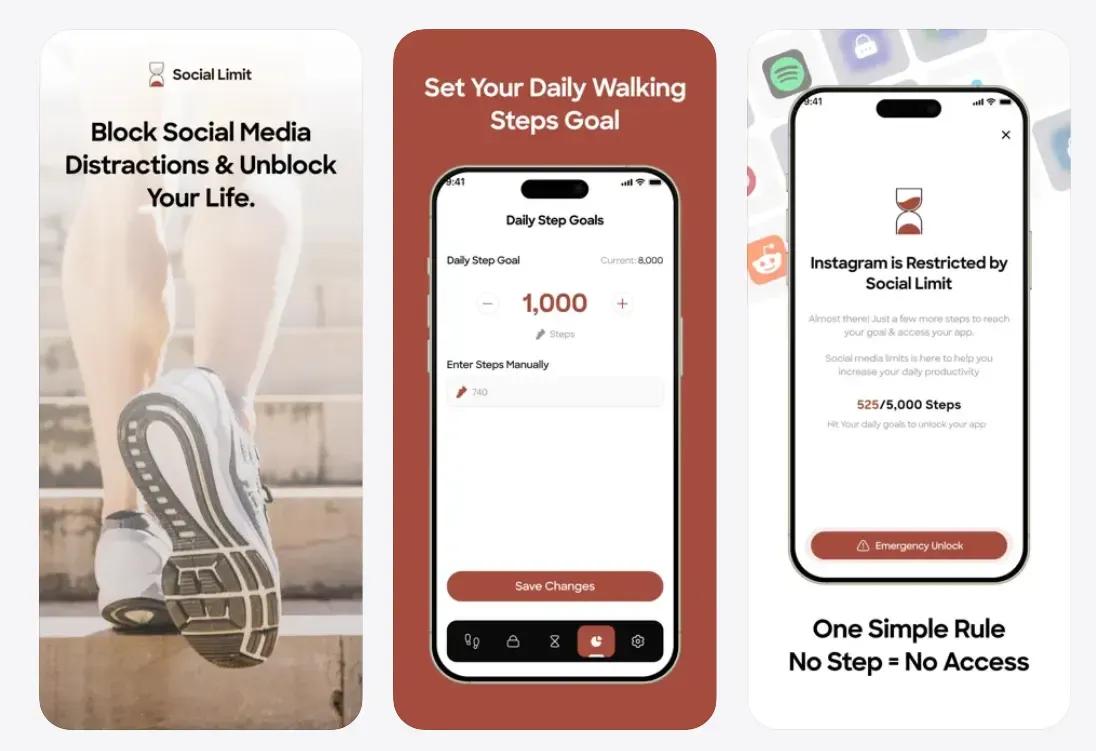
App screenshots featuring the app inside the device with benefits copy
Your app icon is the single most important visual. It appears in the store, on the home screen, and in notifications. Audit your icon color and shape against competitors in your category. Standing out visually increases tap-through rates.
In screenshots, show your app's core value immediately. Do not use splash screens or title art as your first screenshot. Use hybrid captions that combine text and visual cues to guide the user's eye. Test your designs on a small-screen device; if the text is not readable on an iPhone SE, you are losing conversions on every small-screen device.
App preview videos (15-30 seconds) are optional but can significantly boost conversion. Use actual screen recordings rather than animated mockups. Focus on the most compelling features and keep the pacing tight.
Ratings, Reviews, and Engagement Signals
Both stores use ratings as a ranking signal. Higher-rated apps get more visibility, and more visibility drives more downloads. Ask happy users to rate your app, but do not be aggressive about it. On iOS, you can prompt the system rating dialog up to 3 times per 365-day period using SKStoreReviewController.
Respond to user reviews, especially negative ones. On Google Play, your developer response is visible to all users and signals that you actively support your product. Thoughtful responses to criticism improve user trust and can lead reviewers to update their ratings.
In 2026, engagement signals carry more weight than ever. Both Apple and Google now factor retention rates, session length, and uninstall rates into their ranking algorithms. An app that acquires users but loses them quickly will see its search position degrade over time, regardless of how well its metadata is optimized.
Regular updates. Both stores give a ranking boost to apps that are frequently updated.
Need Help Getting Your App to Market?
Submitting to the stores is one step. Building an app that passes review on the first attempt, ranks for the right keywords, and retains users after download is an entirely different challenge. It requires developers who have been through the process before, who know why Apple rejects apps under Guideline 2.1, what Google's Android Vitals thresholds actually mean for your ranking, and how to structure a staged rollout that catches problems before they reach your full audience.
At Softaims, our engineering teams have submitted and launched dozens of apps across both platforms. We handle the full lifecycle: architecture, development, store submission, ASO, and post-launch iteration.
Here is how we can help, depending on where you are in the process:
Building a mobile app from scratch? Our mobile app developers work across iOS, Android, and cross-platform frameworks like React Native and Flutter. They ship production-ready builds with the privacy manifests, signing configurations, and store metadata already in place.
Need frontend expertise for your app's interface? Our React developers build responsive, performant UIs that meet Apple's Human Interface Guidelines and Google's Material Design standards.
Building the API layer and server infrastructure? Our Node.js developers and backend engineers set up the APIs, databases, authentication, and CI/CD pipelines that power your app behind the scenes.
Need a team that covers the full stack? Our full-stack developers handle everything from the database layer to the store listing, so you ship with a single coordinated team rather than stitching together specialists.
Working with MongoDB for your data layer? Our developers have deep experience with MongoDB for mobile backends, including user data handling, session management, and real-time sync at scale.
Every engagement starts with a discovery call and a clear development roadmap. You get a risk-free trial period to evaluate the fit before committing. Browse our full developer roster to find the right match for your project.
Looking to build with this stack?
Hire Mobile App Developers →

 Stackoverflow
Hiren B.

 Verified Expert in Engineering
My name is Hiren B. and I have over 9 years of experience in the tech industry. I specialize in the following technologies: Full-Stack Development, node.js, React, vue.js, PHP, etc.. I hold a degree in Bachelor of Technology (BTech). Some of the notable projects I’ve worked on include: Corporate Website - Full Stack Development, WordPress+Woo-commerce, Fitness Ecommerce Website, React, Node.js- Corporate Website, Event Planning - Web Application, Shopify- Gingercrush, etc.. I am based in Vadodara, India. I've successfully completed 15 projects while developing at Softaims.
I thrive on project diversity, possessing the adaptability to seamlessly transition between different technical stacks, industries, and team structures. This wide-ranging experience allows me to bring unique perspectives and proven solutions from one domain to another, significantly enhancing the problem-solving process.
I quickly become proficient in new technologies as required, focusing on delivering immediate, high-quality value. At Softaims, I leverage this adaptability to ensure project continuity and success, regardless of the evolving technical landscape.
My work philosophy centers on being a resilient and resourceful team member. I prioritize finding pragmatic, scalable solutions that not only meet the current needs but also provide a flexible foundation for future development and changes.

Leave a Comment
Need help building your team? Let's discuss your project requirements.
Get matched with top-tier developers within 24 hours and start your project with no pressure of long-term commitment.