React Native Tutorial: Build Your First Mobile App in 30 Minutes
You already know React and JavaScript. That means you are closer to building mobile apps than you think. This tutorial walks you through building a working notes app with React Native and Expo, covering everything.
Technically reviewed by:
Steven W.|Lytle F.|Hryhorii O.
Table of contents
Key Takeaways
- React Native renders real native components (UIView, android.view.View) through JSI, not a web view wrapper.
- Expo is the officially recommended starting point for all new projects in 2026.
- Your React web skills (useState, useEffect, flexbox, props) transfer directly to mobile with zero changes.
- React Navigation handles stack, tab, and drawer patterns for virtually every mobile app architecture.
- EAS Build and EAS Update handle cloud compilation and over-the-air updates without local Xcode or Android Studio.
If you already know React, you are halfway to building mobile apps. React Native lets developers create native mobile apps for both iOS and Android from a single codebase.
I started working with the framework back in 2018, and what surprised me was how quickly I could get a working app running on my phone. The learning curve is manageable if you come from a React background, and the development experience with hot reload is genuinely fun. In this tutorial, we will build a simple but functional notes app. You will learn the core concepts, set up navigation between screens, and manage state with hooks. By the end, you will have a working app on your phone and a clear understanding of where to go next.
Let’s get started.
What Is React Native and Why Does It Matter in 2026?
React Native is a framework created by Meta (formerly Facebook) that lets you build mobile apps using React and JavaScript. Unlike hybrid frameworks that wrap a web view, React Native renders actual native UI components. When you write a <View> component, it becomes a real UIView on iOS and an android.view.View on Android.
This means that your app looks and feels like a native app because it uses native components behind the scenes. The result is that the performance and user experience are very similar to those of apps made with Swift or Kotlin. You can build without having to manage two separate codebases.
If you want to read more, here's the official React Native documentation.
How React Native Renders Native Components
Understanding the rendering pipeline helps explain why the framework performs well. Your JavaScript code describes the UI using React components. The framework then translates those components into platform-specific native views through a rendering layer.
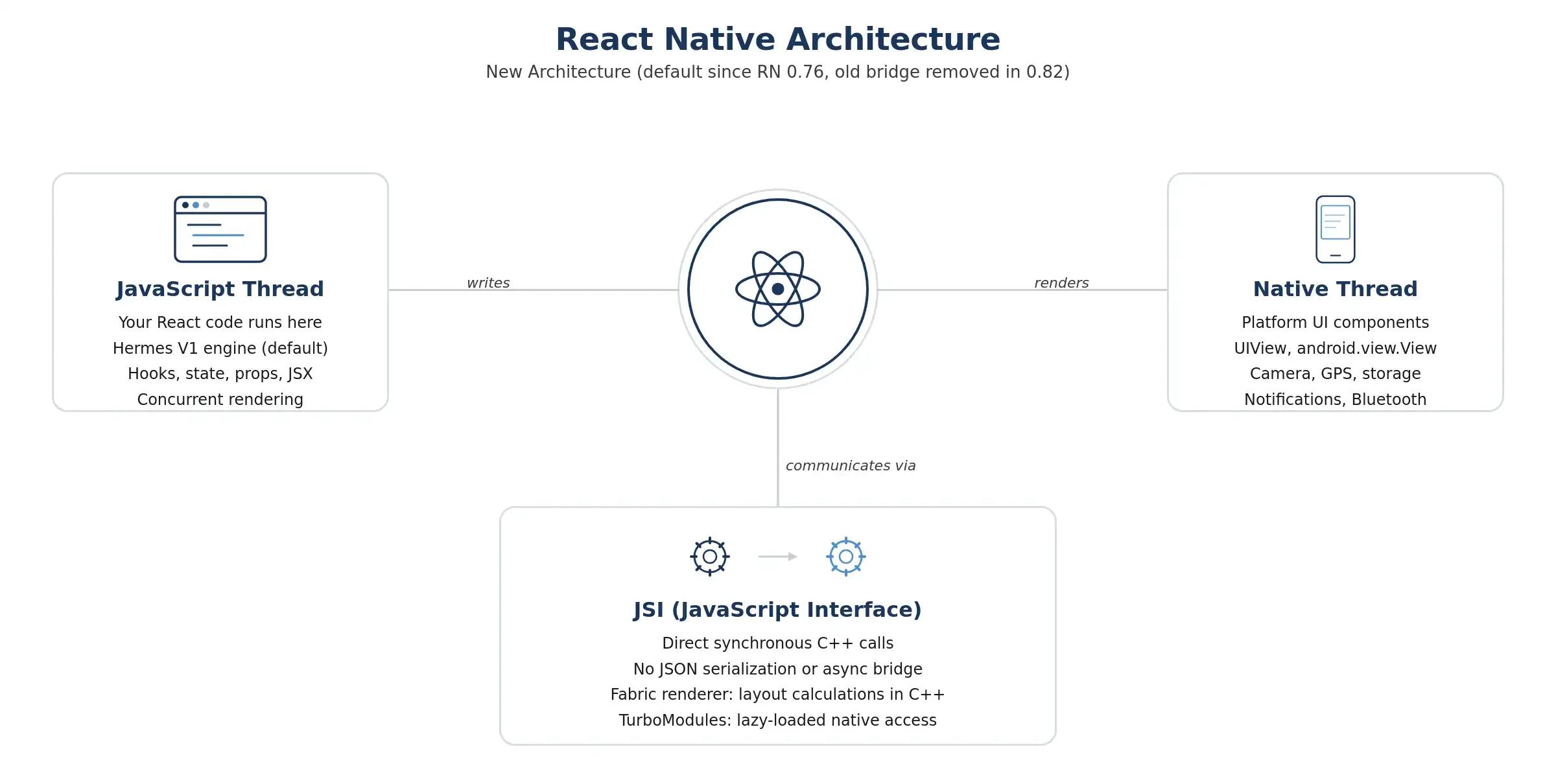
In 2026, this rendering layer has been completely rebuilt. The New Architecture, now the default since React Native 0.76, replaced the old asynchronous JSON bridge with three key technologies:
- JSI (JavaScript Interface): Allows JavaScript to call native functions directly and synchronously through C++, eliminating the serialization overhead that previously caused performance bottlenecks.
- Fabric: The new renderer that enables synchronous layout calculations and supports React 18's concurrent rendering features. Layout measurements that used to require round-trips between JavaScript and native threads now happen in C++.
- TurboModules: Native modules load lazily (only when first accessed) instead of all at startup. It reduces cold start times significantly.
Production apps migrating to the React Native New Architecture have reported cold-start improvements of around 40%, rendering speed gains of around 35%, and memory reductions of around 25%. The Hermes JavaScript engine, now the mandatory default in React Native 0.84, further optimizes startup times through ahead-of-time bytecode compilation.
If you are starting a new project in 2026, you inherit all of these improvements out of the box.
Which Companies Use React Native in Production?
The framework powers applications used by billions of people. Meta uses it extensively across Facebook Marketplace, Messenger Desktop, Ads Manager, and the Meta Quest app. Microsoft has adopted it for components of the Office mobile suite and the Xbox app. Amazon leverages it for customer-facing features in its mobile applications and Kindle e-readers.
Shopify builds all of its mobile apps with the framework. Wix, with one of the largest codebases in the ecosystem, uses it across its entire suite of applications. Coinbase rewrote its Android app using the framework, citing how easily its existing React web developers became productive in the mobile codebase.
The common thread across these companies is a strategic calculation: the framework enables them to share significant portions of code across platforms, reduce time-to-market, and leverage their existing JavaScript talent pool without sacrificing native performance.
React Native vs Flutter: How Do They Compare?
If you're looking at cross-platform frameworks, you've probably heard of Flutter as an option. Both are production-ready platforms in 2026, but they have different strengths. The framework uses real native platform components to render. A button on iOS looks and works like a button that comes with iOS. You don't have to do anything special to make platform-specific features like iOS bounce physics, Android ripple effects, and system accessibility features work. This approach helps you build apps that feel native on each platform.
Flutter, developed by Google, uses its own rendering engine (Impeller) to draw every pixel directly on a GPU-accelerated canvas. This gives Flutter pixel-perfect consistency across platforms and strong performance for complex animations and custom UI elements. However, it requires learning Dart, a language most teams do not already know.
Team skills and project needs usually decide what to do in the real world. React Native is the better way to go if your team knows JavaScript or TypeScript and you want to access the largest package ecosystem (npm). If you need highly customized, animation-heavy UIs and your team is willing to invest in Dart, Flutter has technical advantages in that domain.
For teams that already have React web applications, migrating to mobile is especially easy. Developers can reuse their knowledge of React patterns and state management and even share business logic between web and mobile through monorepo structures. Companies looking to hire React developers can often benefit from developers who can also contribute to mobile projects with minimal additional training.
Setting Up Your React Native Development Environment
There are two ways to start a React Native project: using Expo or the React Native CLI. We are going with Expo because it is much simpler to set up and great for learning.
Expo CLI vs React Native CLI: Which Should You Choose?
Before diving in, it helps to understand the two development paths available.
React Native CLI is the standard toolchain. It gives you full control over the native iOS and Android project files, which means you can write custom native modules in Swift, Kotlin, or Java directly. However, setting everything up is hard. You need to have Xcode installed for iOS builds, Android Studio set up with the Android SDK and an emulator and platform-specific environment variables (JAVA_HOME, ANDROID_HOME, Android SDK path, emulator path, platform-tools path) all set up correctly. The CLI gives teams the freedom to have deep native integration from the start.
Expo is a collection of tools and services built on top of the CLI that abstracts away the native configuration. You do not need Xcode or Android Studio to start building. Expo provides a preconfigured development environment, a standard library of native APIs, and cloud-based build services. To test your app, you install the Expo Go app on your phone, scan a QR code, and the app loads over your local network. No USB cable, no emulator configuration, no signing certificates.
The official React Native documentation now recommends Expo for all new projects. The framework provides file-based routing, a standard library of native modules, and developer tooling that handles the complicated native build configuration for you. There is rarely a reason to start with a bare CLI setup anymore.
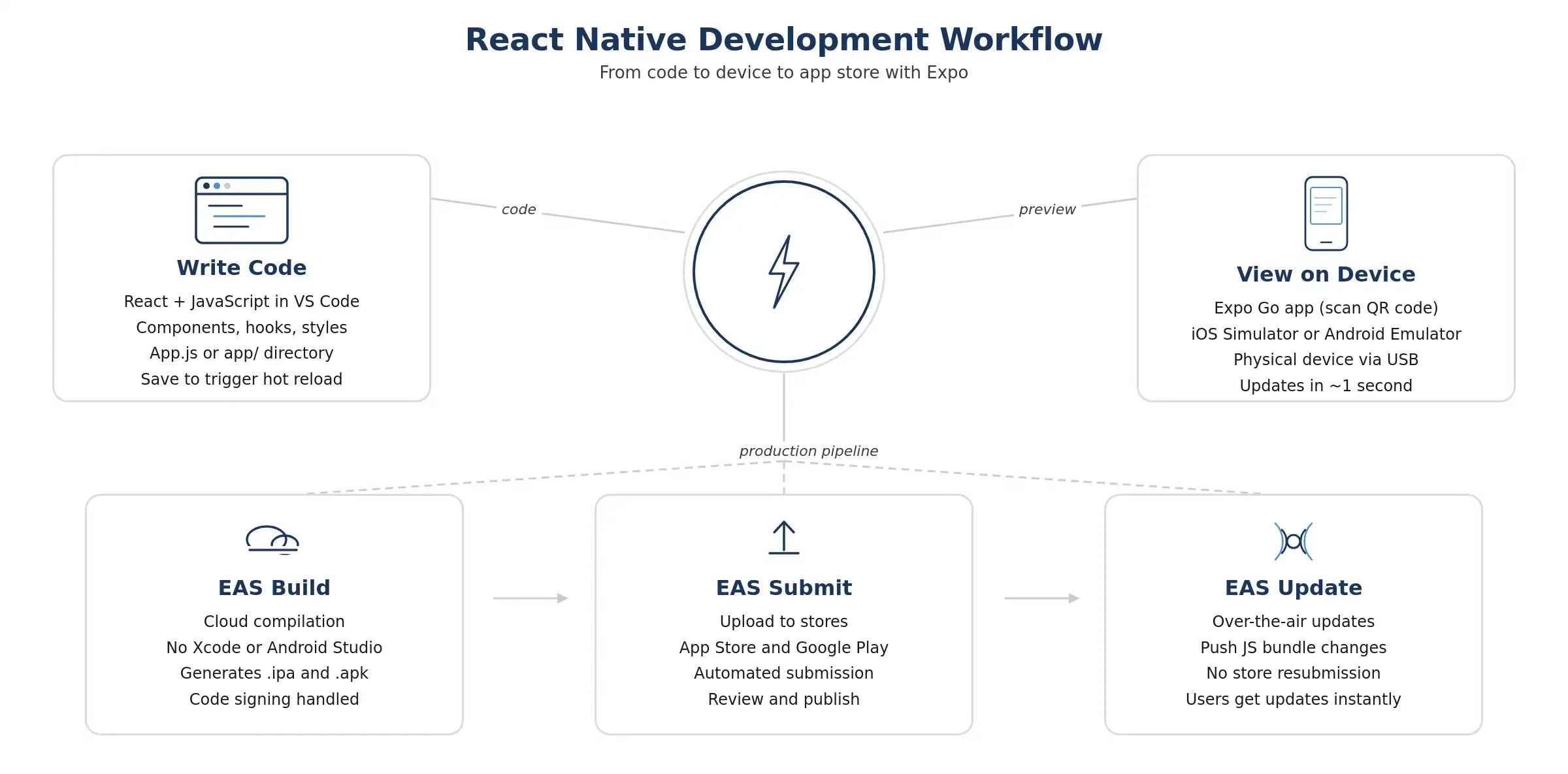
Expo's managed workflow means the EAS (Expo Application Services) Build system handles iOS and Android compilation in the cloud. This eliminates the need for a Mac for iOS builds and removes the hassle of maintaining signing certificates across team members' machines. The Expo SDK covers nearly every native capability a typical app needs: camera access, push notifications, file system, location services, and more. If you do need custom native modules, you can always eject to a bare workflow later without losing your JavaScript codebase.
Prerequisites
Before creating your project, make sure you have the following:
- Node.js (version 18 or higher). Download from nodejs.org. React Native 0.84 requires Node.js 18 minimum.
- Expo Go app on your phone. Available on both App Store and Google Play. This lets you run your app on a real device during development.
- A code editor. VS Code is the most common choice in the React Native ecosystem.
Creating the Project
Open your terminal and run:
npx create-expo-app my-notes-app
cd my-notes-app
npx expo start
There will be a QR code on the terminal. Scan it with the Expo Go app on your phone, and your app will load instantly. Every time you save a file, the app updates on your device in about a second. This is due to hot reload, one of the most productive aspects of React Native development.
Understanding the Project Structure
After creating the project, your directory contains several important files and folders:
app/ (or App.js) is where your application code lives. In Expo's file-based routing, each file in the app/ directory corresponds to a route. If you are using the classic setup, App.js serves as the root component that holds your entire project: pages, components, and screen logic all flow from this entry point.
package.json manages your project dependencies. Every third-party library you install (e.g, React Navigation, Axios, AsyncStorage) gets listed here. It also contains scripts to start the development server and build the app.
index.js is the entry point that the bundler looks for when your project runs. It registers the root component with the app registry. In most Expo projects, this is handled automatically, but understanding its role helps when debugging startup issues.
assets/ holds static resources like images, fonts, and icons. Expo provides built-in support for loading these assets efficiently.
node_modules/ contains all installed dependencies. You never edit files here directly.
Running on Emulators, Simulators, and Physical Devices
Expo Go on a real phone is the fastest way to develop and test. We recommend it for most of your workflow because it gives you the most accurate sense of how the app performs, how gestures respond, and how the UI renders on an actual screen.
When you need emulators or simulators, you have the following options:
iOS Simulator (Mac only): Install Xcode from the Mac App Store, then press 'i' in the Expo terminal to launch the iOS simulator. The simulator runs a full iOS environment on your Mac, which is useful for testing platform-specific behaviors like the iOS back swipe gesture and status bar interactions.
Android Emulator: Install Android Studio and set up a virtual device through the AVD (Android Virtual Device) Manager. You will need to set up the emulator and install the Android SDK and Android SDK Platform. Once the emulator is running, press 'a' in the Expo terminal to launch your app on it. If you are on Linux or Windows, you will also need to set your ANDROID_HOME and JAVA_HOME environment variables correctly.
I personally develop on a real device 90% of the time. It is faster and gives you a more accurate feel for how the app performs.
Physical Device via USB: For testing without Expo Go (for example, when building with the React Native CLI), enable USB debugging on your Android device, connect it to your machine via USB, and run npm start. The development server detects the connected device and launches the app directly.
Core Components Every React Native Developer Should Know
React Native does not use HTML elements. This is the first conceptual shift for web developers. Instead of the DOM, you work with a set of platform-agnostic components that map to native views.
View, Text, Image, and TextInput
The core component set is simple once you understand the mapping from web concepts:
View is the fundamental container, equivalent to <div> in web development. It supports flexbox layout, styling, touch handling, and accessibility controls. Almost every screen you build will be composed of nested View components.
Text is required for all text rendering. Unlike the web, where text can exist inside a <div>, React Native enforces a strict rule: all text should be wrapped in a <Text> component. This limitation exists because native platforms render text differently than the DOM.
Image handles both local and remote image display. It supports caching, resizing modes, and loading indicators out of the box.
TextInput provides user input fields with platform-native keyboard handling. It automatically adapts to the platform's keyboard behavior, including autocorrect, return key types, and secure text entry for passwords.
TouchableOpacity and Pressable are for interactive elements. Pressable is the newer and more flexible API. It supports press states, long press, and hover (for web targets). TouchableOpacity reduces the opacity of the wrapped view on press, providing visual feedback.
Button is the simplest interactive component. It renders a platform-native button (styled differently on iOS and Android) and accepts a title prop for the label and an onPress prop for the tap handler. For more control over button appearance, most developers use TouchableOpacity or Pressable with custom styling instead.
ActivityIndicator displays a platform-native loading spinner. Pass size="large" or size="small" to control its appearance. This component is essential for providing visual feedback during network requests, data loading, or any asynchronous operation where the user needs to know the app is working.
ScrollView handles scrollable content for shorter lists and forms. It renders all its children at once, which is fine for screens with moderate content. For long lists, FlatList is the better choice because it virtualizes the rendering. And only mounting the items currently visible on screen. This keeps memory usage low and scroll performance smooth. As a rule of thumb, use ScrollView when your content fits within a few screen heights, and switch to FlatList when rendering dynamic lists of data.
How Styling Works in React Native
Styling uses JavaScript objects with camelCase property names instead of CSS files. If you have worked with CSS-in-JS libraries like styled-components, the pattern will feel familiar.
There are two approaches to applying styles. Inline styling passes style objects directly to a component's style prop. This works for quick prototyping, but becomes difficult to maintain as your app grows. StyleSheet.create is the recommended approach: it lets you define named style objects in a structured way, similar to how you would organize CSS classes. The function also provides validation in development and potential performance optimizations by sending styles to native only once.
Flexbox is the default layout system, and it works the same way as on the web, with one key difference: the default flexDirection is column (vertical), not row (horizontal). This makes sense for mobile, where most layouts stack content vertically. Most CSS layout properties you already know, such as justifyContent, alignItems, padding, margin, and borderRadius, work the same way in the framework. This means achieving responsive design follows the same flexbox principles you use in vanilla CSS.
Beyond manual styling, component libraries provide prebuilt, themed UI elements that function as plug-and-play modules. Libraries like React Native Paper (Material Design), NativeBase, and Tamagui give you production-ready buttons, cards, inputs, and navigation elements out of the box. Simply install the library and start importing components. These libraries are particularly useful for maintaining visual consistency across your app without having to write every style from scratch.
Here is a basic screen using these components:
import { View, Text, Image, StyleSheet } from 'react-native';
export default function ProfileScreen() {
  return (
    <View style={styles.container}>
      <Image
        source={{ uri: 'https://placekitten.com/200/200' }}
        style={styles.avatar}
      />
      <Text style={styles.name}>John Doe</Text>
      <Text style={styles.bio}>Mobile developer and cat lover</Text>
    </View>
  );
}
const styles = StyleSheet.create({
  container: {
    flex: 1,
    alignItems: 'center',
    justifyContent: 'center',
    backgroundColor: '#fff',
  },
  avatar: { width: 120, height: 120, borderRadius: 60 },
  name: { fontSize: 24, fontWeight: 'bold', marginTop: 16 },
  bio: { fontSize: 16, color: '#666', marginTop: 8 },
});
StyleSheet.create is not strictly required, but it provides validation in development and potential performance optimizations by sending styles to native only once. Use it as a default practice.
Building a Notes App: Your First React Native Project
Now that we've gone over the basics, let's make something that works. You can add notes, see them in a list, and delete them by tapping on the notes app. It shows how to manage state with hooks, render lists with FlatList, and handle user input.
Managing State with Hooks
The framework uses the same hooks as React web. useState, useEffect, useContext, useReducer, and every other hook you already know work the same way. This is one of the strongest advantages for web developers switching to mobile.
The notes app uses useState for two pieces of state: the array of notes and the current input value. The addNote function creates a new note object with a unique ID (using Date.now()), the text content, and a timestamp. The deleteNote function filters the notes array to remove the selected item.
Rendering Lists with FlatList
FlatList is the component you will reach for whenever you need to render a scrollable list. Unlike ScrollView, which renders all children at once, FlatList only renders the items currently visible on screen. For a notes app, this might not matter if there are only 20 notes. But for an app rendering hundreds or thousands of items, the difference in memory usage and scroll performance is substantial.
The keyExtractor prop tells FlatList how to uniquely identify each item, which is critical for efficient re-rendering. The renderItem prop receives each item and returns the JSX to display it. ListEmptyComponent provides fallback content when the list has no data.
Now let’s replace the contents of App.js with the following:
import { useState } from 'react';
import {
  View, Text, TextInput, FlatList,
  TouchableOpacity, StyleSheet, SafeAreaView
} from 'react-native';
export default function App() {
  const [notes, setNotes] = useState([]);
  const [input, setInput] = useState('');
  function addNote() {
    if (input.trim() === '') return;
    const newNote = {
      id: Date.now().toString(),
      text: input,
      createdAt: new Date().toLocaleString(),
    };
    setNotes([newNote, ...notes]);
    setInput('');
  }
  function deleteNote(id) {
    setNotes(notes.filter(note => note.id !== id));
  }
  return (
    <SafeAreaView style={styles.container}>
      <Text style={styles.title}>My Notes</Text>
      <View style={styles.inputRow}>
        <TextInput
          style={styles.input}
          value={input}
          onChangeText={setInput}
          placeholder="Write a note..."
          onSubmitEditing={addNote}
        />
        <TouchableOpacity style={styles.addBtn} onPress={addNote}>
          <Text style={styles.addBtnText}>Add</Text>
        </TouchableOpacity>
      </View>
      <FlatList
        data={notes}
        keyExtractor={(item) => item.id}
        renderItem={({ item }) => (
          <TouchableOpacity
            style={styles.noteCard}
            onLongPress={() => deleteNote(item.id)}
          >
            <Text style={styles.noteText}>{item.text}</Text>
            <Text style={styles.noteDate}>{item.createdAt}</Text>
          </TouchableOpacity>
        )}
        ListEmptyComponent={<Text style={styles.empty}>No notes yet</Text>}
      />
    </SafeAreaView>
  );
}
And the styles:
const styles = StyleSheet.create({
  container: { flex: 1, backgroundColor: '#f8f9fa', padding: 20 },
  title: { fontSize: 28, fontWeight: 'bold', marginBottom: 20, marginTop: 10 },
  inputRow: { flexDirection: 'row', marginBottom: 20 },
  input: {
    flex: 1, borderWidth: 1, borderColor: '#ddd',
    borderRadius: 8, padding: 12, fontSize: 16,
    backgroundColor: '#fff',
  },
  addBtn: {
    backgroundColor: '#007AFF', borderRadius: 8,
    paddingHorizontal: 20, justifyContent: 'center', marginLeft: 10,
  },
  addBtnText: { color: '#fff', fontWeight: 'bold', fontSize: 16 },
  noteCard: {
    backgroundColor: '#fff', padding: 16, borderRadius: 8,
    marginBottom: 10, borderWidth: 1, borderColor: '#eee',
  },
  noteText: { fontSize: 16 },
  noteDate: { fontSize: 12, color: '#999', marginTop: 8 },
  empty: { textAlign: 'center', color: '#999', marginTop: 40, fontSize: 16 },
});
Save the file and check your phone. You should see a working notes app. Type a note, tap Add, and it appears in the list. Long-press a note to delete it.
Notice how SafeAreaView wraps the entire screen. This component ensures your content does not overlap with the device's notch, status bar, or home indicator. Without it, content can render behind system UI elements, which is a common mistake in early React Native projects.
How Do You Add Navigation Between Screens?
Most apps require more than one screen. React Navigation is the standard library for handling screen transitions, tab bars, drawers, and deep linking.
Setting Up React Navigation
Install the required packages:
npx expo install @react-navigation/native @react-navigation/native-stack
npx expo install react-native-screens react-native-safe-area-context
When installing, make sure to use npx expo install instead of npm install. Expo automatically selects versions of these packages that are compatible with your current Expo SDK version. This way, you can avoid version-mismatch issues that can cause build failures.
Stack, Tab, and Drawer Navigation
Stack navigation is the most fundamental pattern. It works like a stack of cards: each new screen is pushed onto the stack, and going back pops the top screen off. This is how most detail views work in mobile apps.
Here is a basic stack navigation setup with two screens:
import { NavigationContainer } from '@react-navigation/native';
import { createNativeStackNavigator } from '@react-navigation/native-stack';
const Stack = createNativeStackNavigator();
export default function App() {
  return (
    <NavigationContainer>
      <Stack.Navigator>
        <Stack.Screen name="Home" component={HomeScreen} />
        <Stack.Screen name="Details" component={DetailsScreen} />
      </Stack.Navigator>
    </NavigationContainer>
  );
}
function HomeScreen({ navigation }) {
  return (
    <View style={{ flex: 1, justifyContent: 'center', alignItems: 'center' }}>
      <Button
        title="Go to Details"
        onPress={() => navigation.navigate('Details')}
      />
    </View>
  );
}
The navigation prop is automatically injected into every screen component registered with the navigator. It provides methods like navigate (go to a specific screen), goBack (return to the previous screen), and setParams (update the current screen's parameters).
Tab navigation adds a tab bar at the bottom of the screen so users can move between top-level sections. You can see this pattern in apps like Instagram, which have buttons for Home, Search, Reels, Shop, and Profile.
Drawer navigation adds a side panel that slides in from the edge of the screen and is commonly used for settings and secondary navigation.
These navigation types can be nested. A common architecture is a bottom tab navigator at the root, with each tab containing its own stack navigator. This allows each tab to maintain its own navigation history independently.
You can read the React Native official docs to learn more about React Navigation.
What Should You Learn After This Tutorial?
This tutorial covers the foundation. Building a production-ready app requires additional concepts that build on everything you have learned here.
State Management Beyond useState
In JavaScript, you hold data using let, var, and const. In React and React Native, the useState hook serves this purpose, but with a critical difference: when state changes, the component re-renders to reflect the updated data. This reactive keeps UI in sync with your application's data.
For most apps built with the framework, useState and useContext are sufficient. The same patterns you use in React web apply directly. useContext is particularly useful for sharing data like authentication state, theme preferences, or user settings across multiple screens without prop drilling.
Data flow and component communication are important considerations as your app grows. The simplest approach is passing data from parent to child components through props, the same pattern you use in React web. For small apps, prop drilling (passing props through multiple component layers) is acceptable. As the app scales, this becomes unwieldy.
For mid-sized applications, the Context API combined with useReducer provides a structured way to share state across your component tree without external libraries. The Context API creates a provider that wraps a section of your app, and any component within that tree can access the shared data. useReducer provides predictable state transitions via action dispatching, which is particularly useful for managing form state across multiple screens or for handling optimistic updates for API calls.
For larger applications with complex state interactions, consider Zustand. It provides a lightweight store with a simple API and integrates cleanly with React's rendering model. Redux Toolkit remains a solid option for teams that need more structure and middleware support, but start with hooks and only use a state management library when the complexity of your state logic actually needs it.
Local Storage, API Integration, and Push Notifications
AsyncStorage is the mobile equivalent of the browser's localStorage. It provides a simple key-value store that persists data across app sessions. For caching API responses, storing user preferences, or maintaining offline state, AsyncStorage is the standard solution. Learn more at the AsyncStorage documentation.
API integration works the same way it does on the web. Two primary methods are available for data fetching: the built-in fetch API and the third-party library axios.
fetch is available natively without any installation. It handles basic HTTP requests well, but it has some limitations: it does not automatically transform JSON responses (you need to call .json() on the response), error handling requires manual status code checks since fetch only rejects on network failures, and managing complex request configurations like interceptors or timeouts requires additional code.
axios is a third-party library built on top of HTTP standards that addresses these limitations. It automatically transforms JSON data, provides cleaner error handling (rejecting the promise for any non-2xx status code), supports request and response interceptors, and handles request cancellation out of the box. For most production applications, axios is the more practical choice. Install it with npx expo install axios.
The primary difference between web and mobile API integration is handling offline scenarios. Mobile apps operate in environments with unreliable connectivity, so implementing retry logic, showing cached data when the network is unavailable, and providing clear loading states (using ActivityIndicator) are best practices that separate a polished app from a prototype.
Push notifications are one of the features that Expo handles particularly well. The Expo Push Notification service provides a unified API for both iOS (APNs) and Android (FCM), abstracting away the platform-specific configuration. Check the Expo Push Notifications guide for implementation details.
If your app requires a backend to serve data, the framework works with any backend technology. A common stack is Node.js with Express or a serverless architecture using AWS Lambda. Teams building full-stack applications often share TypeScript types and business logic between the mobile frontend and the Node.js backend within a monorepo.
Building and Submitting to App Stores with EAS Build
When your app is ready, you need to convert your JavaScript code into native app files that you can submit to app stores or that users can install on their devices.
With Expo (recommended): EAS Build compiles your project into native iOS and Android binaries in the cloud. This eliminates the need for local Xcode or Android Studio builds and standardizes the build process across your team. The workflow is straightforward: configure your eas.json file with build profiles for development, staging, and production, then run eas build from the terminal. EAS handles code signing, provisioning profiles, and all the platform-specific build configuration that traditionally made mobile deployment tedious.
EAS Submit then uploads your built binaries directly to the App Store and Google Play. For ongoing updates that do not involve native code changes, EAS Update lets you push JavaScript bundle updates over the air, meaning your users receive fixes and feature updates without downloading a new version from the store.
With React Native CLI (bare projects): If you are working without Expo, you build the APK or IPA directly on your machine. For Android, navigate to your project's android/ folder and run ./gradlew assembleRelease. This generates an APK file in the android/app/build/outputs/apk/release/ directory that you can install on any Android device or upload to the Google Play Console. For iOS, you open the ios/ folder in Xcode, configure your signing certificates, and archive the build for distribution through App Store Connect.
With the CLI method, you have full control, but you have to keep the native build toolchain on your own machine. Most teams find that EAS Build is the better way to go because it eliminates differences across developer machines and makes mobile build pipelines easier to understand.
Learn more: EAS Build documentation.
If you're exploring broader development roadmaps for React Native and related technologies, structured learning paths can help you prioritize which skills to invest in.
Common Debugging Approaches
Debugging mobile apps can be hard for web developers who aren't used to it. Here are the most important tools and methods you can use.
- Expo DevTools opens in your browser when you run npx expo start. It provides a console log output, the ability to switch between devices, and access to the JavaScript debugger. For most development work, this is your primary debugging interface.
- React DevTools works with the framework the same way it works with React web. Install it as a standalone app (npx react-devtools) and connect it to your running app. It lets you inspect the component tree, view props and state, and profile rendering performance.
- LogBox is the built-in error and warning overlay that appears on the device screen when something goes wrong. Yellow boxes indicate warnings (non-breaking issues you should address), and red boxes indicate errors (the app has crashed or hit an unrecoverable state). Reading these messages carefully solves the majority of development issues. When you encounter an error you do not understand, the React Native community on Stack Overflow and GitHub Discussions is one of the largest in mobile development, with solutions for nearly every common issue.
- Shake gesture on a physical device opens the developer menu, which provides access to hot reload toggles, the performance monitor, and the element inspector. On an emulator, press Cmd+D (iOS) or Cmd+M (Android) to open this menu.
Conclusion
React Native is a mature, fast framework in 2026, backed by Meta and with one of the largest developer communities in the business. The New Architecture has eliminated the performance issues that plagued earlier versions. Expo has also made the development process so simple that it only takes a few minutes to go from an idea to a working app on your phone.
The notes app we made in this tutorial illustrates the main ideas: how to put components together, how to use hooks to manage state, how to render lists, and how to navigate. These same patterns work for production applications. The companies that run the framework at scale use the same basic building blocks, but they add extra layers for testing, CI/CD, and monitoring.
If you’re building a mobile app and want to go beyond tutorials to a real product, working with experienced developers helps a lot. At Softaims, our React Native developers and mobile app developers have built and launched apps across industries. Whether you need to hire hybrid app developers for a cross-platform app or want to grow your team, our pre-vetted engineers can join your workflow and start contributing within 48 hours.


 GitHub
Hryhorii O.

 Verified Expert in Engineering
My name is Hryhorii O. and I have over 6 years of experience in the tech industry. I specialize in the following technologies: React, HTML, XML, node.js, JavaScript, etc.. I hold a degree in Master of Computer Applications (MCA), Bachelor of Engineering (BEng). Some of the notable projects I’ve worked on include: The BAY OF VIKINGS. The team of hotels and recreational complexes, TVOE.SHOP. Internet shop for gifts and hostile goods, MOHIO GAMING .Top revenue-making bookmakers software, Cryptocurrency Exchange, GIN Blockchain Explorer, etc.. I am based in Lviv, Ukraine. I've successfully completed 7 projects while developing at Softaims.
I possess comprehensive technical expertise across the entire solution lifecycle, from user interfaces and information management to system architecture and deployment pipelines. This end-to-end perspective allows me to build solutions that are harmonious and efficient across all functional layers.
I excel at managing technical health and ensuring that every component of the system adheres to the highest standards of performance and security. Working at Softaims, I ensure that integration is seamless and the overall architecture is sound and well-defined.
My commitment is to taking full ownership of project delivery, moving quickly and decisively to resolve issues and deliver high-quality features that meet or exceed the client's commercial objectives.

Leave a Comment
Need help building your team? Let's discuss your project requirements.
Get matched with top-tier developers within 24 hours and start your project with no pressure of long-term commitment.